1
 →
→
HatchZip is a free, open-source archive extractor for Windows, macOS and Linux that extracts ZIP, 7z, RAR, tar and split archives in place, so it needs free space for the extracted files only.
xevrion/hatchzip is an open-source project on GitHub, mainly written in Rust. HatchZip is a free, open-source archive extractor for Windows, macOS and Linux that extracts ZIP, 7z, RAR, tar and split archives in place It currently holds 2,291 stars and 71 forks with 0 open issues, and was last pushed on an unknown date (repository created unknown).
Git Homed tracks it on the Today's Trending board.
Extract huge archives in place. The archive shrinks as your files hatch,
so you only need free space for the output, not for the output and the archive.



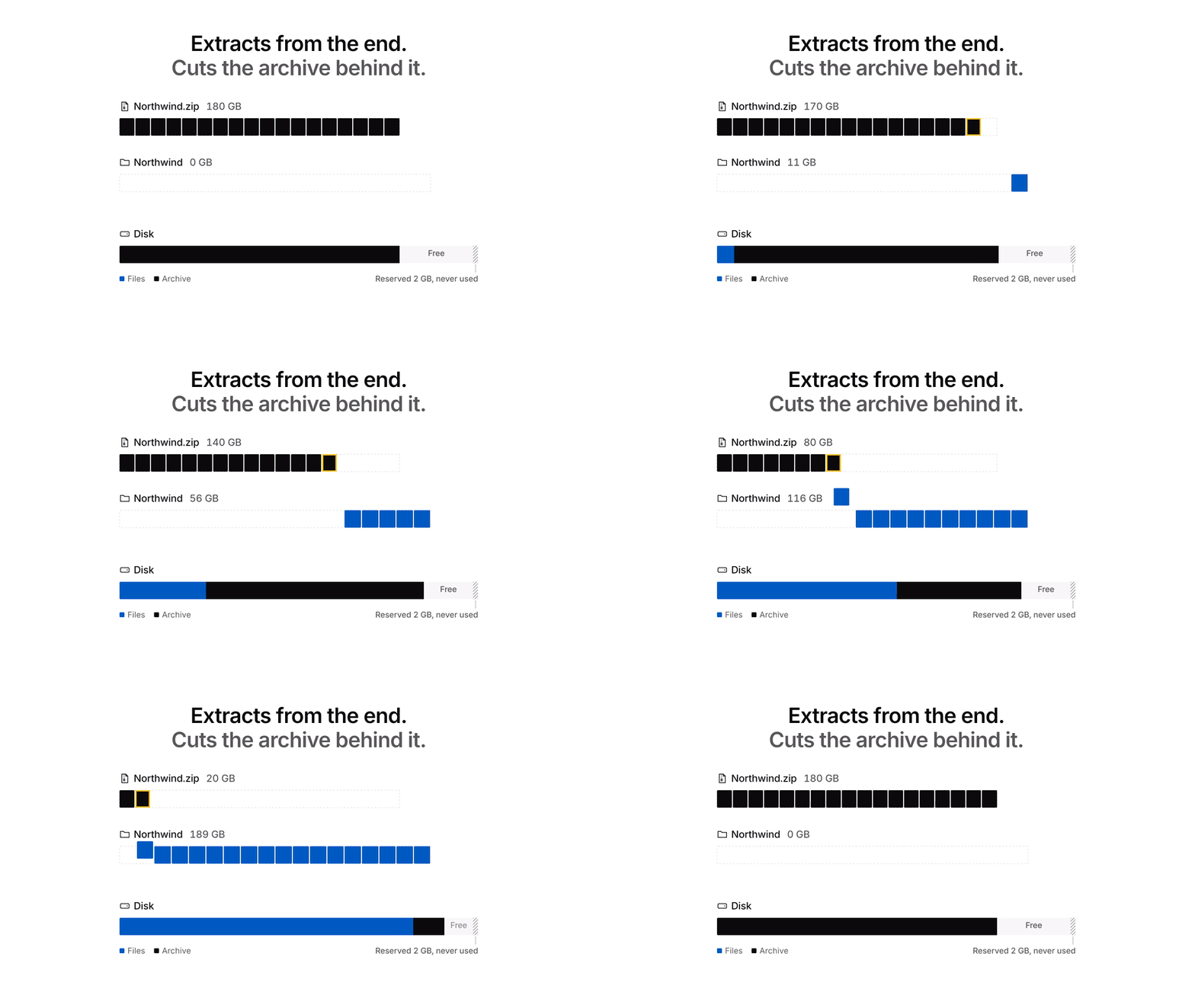
HatchZip is a free, open-source archive extractor for Windows, macOS and Linux, with a desktop app and a command line tool. It extracts ZIP, 7z, RAR, tar and split archives in place, for when there is not enough disk space to extract an archive next to itself, such as a large game download on a nearly full disk. Download it from hatchzip.dev.
A 180 GB game download that unpacks to 200 GB needs 380 GB of disk with WinRAR, 7-Zip or unzip, because the archive and everything extracted from it have to exist at the same time. HatchZip needs a little over 200 GB. It extracts the archive from the end and cuts each finished part off the archive file as it goes, so the space the archive gives back is reused for the next files.
It checks that the extraction will fit before it changes anything, keeps a safety margin of free space the whole way through, and can be stopped or crash at any moment and pick up where it left off. It reads ZIP, 7z, tar, .tar.gz, RAR volume sets and split archives.
[!IMPORTANT]
HatchZip is only distributed from this repository's releases and its site, hatchzip.dev. Other sites using the name, such as hatchzip.com, are not affiliated with this project.
No coding needed. Download for Windows (Windows 10 and 11), or for macOS (Apple Silicon), macOS (Intel) and Linux.
1. Run the installer. Windows may show "Windows protected your PC" because HatchZip is not code-signed yet: choose More info, then Run anyway. 2. Right-click the archive, choose HatchZip, then Extract here. On Windows 11 the menu is under Show more options. To pick the destination folder first, choose Extract files… instead. 3. Or open HatchZip from the Start menu, open the archive, and choose Extract.
HatchZip shows whether the files will fit before it changes anything. The archive is used up as the files come out, so when it finishes, only the extracted files are left.
Extract here puts an archive with one folder or one file at its top next to the archive. An archive with several files or folders at its top goes into a new folder named after it, so its files never mix with what is already there. The progress window closes when the extraction completes; to keep it open, clear Close the progress window when extraction completes in the app's Settings menu.
To keep the archive when there is room for both, choose Extract here (keep archive) in the right-click menu. To always keep archives, as other extractors do, clear Remove the archive during extraction in the app's Settings menu; every right-click entry then keeps the archive too. That is a normal extraction: the archive is not changed, and space is required for all extracted files.
The same 200 MB of game data (21 files), packed by the real tools, extracted on a 220 MiB disk with about 50 MB free:
| Archive | unzip / 7-Zip | HatchZip |
|---|---|---|
| ZIP, 180 MB | unzip ran out of space at file 6 of 21 | Finished, every file byte-identical |
| 7z from 7-Zip 25.01, -ms=20m (10 solid blocks) | Needs 380 MB | Finished in 0.64 s, every file byte-identical |
| 7z split into 5 volumes of 40 MB | Needs 380 MB | Finished; volumes deleted one at a time, peak 210 MB used |
| tar from GNU tar, 200 MB | Needs 400 MB | Finished in 0.12 s, every file byte-identical |
| 7z from 7-Zip with default settings (1 solid block) | Needs 380 MB | Refused before touching anything: one solid block can't be freed until all of it is out, so it needs 200 MB free |
| | Result |
|---|---|
| ZIP extraction speed, same data | 0.25 to 0.35 s, against 1.48 to 1.50 s for unzip 6.00, including an fsync unzip skips |
| Crash safety | Killed at both unsafe moments of a batch at many points of each format's run; every resume finished with identical output |
| Works on | Any filesystem that can shrink a file: ext4, btrfs, XFS, NTFS, APFS, and also exFAT and FAT32 USB drives |
Measured on Fedora 43, Intel Core i7-14700HX, SK Hynix NVMe SSD, warm page cache; the disk-space runs used a 220 MiB tmpfs to stand in for a full laptop disk, the speed runs ext4. Speed comes from decompressing files in parallel, so an archive holding one giant file extracts at the speed of a single core.
The extra space HatchZip needs beyond the output is about the size of the largest single unit it can free at once: one file for ZIP and tar, one solid block for 7z. On filesystems that can punch holes (ext4, XFS, btrfs, tmpfs; NTFS and APFS not yet verified), a large file stored or deflated in a ZIP, or in a tar, frees its archive bytes every 256 MiB while it is extracted: a ZIP holding one 600 MiB stored file extracted on a 950 MiB tmpfs with 367 MB free, where it needed 629 MB before. hatchzip check computes the exact figure for any archive.
Download from the latest release:
| System | File |
|---|---|
| Windows 10 and 11 (x64) | HatchZip-x64-setup.exe: installs per user, no admin rights, adds the right-click menu |
| Windows 10 and 11 (x64), MSI | HatchZip-x64.msi: the same app and install as the setup, as a Windows Installer package for deployment tools and msiexec /i HatchZip-x64.msi /qn. Install one or the other |
| Windows 10 and 11 (x64), portable | HatchZip-x64-portable.zip: the same app and command line tool with nothing to install. Unzip it anywhere and run hatchzip-gui.exe; Settings, "Show in the Explorer context menu" adds the right-click entries for that location |
| macOS, Apple Silicon | HatchZip-aarch64.dmg |
| macOS, Intel | HatchZip-x86_64.dmg |
| Debian, Ubuntu | hatchzip_amd64.deb |
| Fedora, openSUSE | hatchzip-x86_64.rpm |
| Any Linux | HatchZip-x86_64.AppImage |
The installers also put the hatchzip command (and its short name hz) on your PATH. The Windows installers and the macOS apps are not code-signed yet: on Windows choose More info, then Run anyway; on macOS 15 and later, open the app once, then allow it under System Settings, Privacy & Security.
Linux and macOS:
curl -fsSL https://raw.githubusercontent.com/xevrion/hatchzip/main/install.sh | sh
Windows, in PowerShell:
irm https://raw.githubusercontent.com/xevrion/hatchzip/main/install.ps1 | iex
Both download the build for your machine from the latest release, check it against its published SHA-256 checksum, and install hatchzip and hz for your user only, with the man page and shell completions. No root or administrator rights.
Every release file from 0.1.3 on carries signed build provenance. To check that a download really was built from this repository by its release workflow, wherever you got it:
gh attestation verify HatchZip-x64-setup.exe --repo xevrion/hatchzip
Homebrew and Scoop are live. winget is in review, and the AUR packages are coming soon; until they are listed as live here, a package under those names does not come from this project.
| System | Command | Installs |
|---|---|---|
| Arch Linux (AUR) | Not published yet. Until then, use the AppImage or the install script | App and CLI |
| Windows (winget) | In review; until it is accepted, use the setup | App and CLI, same as the setup |
| Windows (Scoop) | scoop bucket add xevrion https://github.com/xevrion/scoop-bucket, then scoop install xevrion/hatchzip | CLI |
| macOS and Linux (Homebrew) | brew install xevrion/tap/hatchzip | CLI |
| macOS (Homebrew) | brew install --cask xevrion/tap/hatchzip | App and CLI |
cargo install hatchzip
This builds the command line tool from crates.io. The engine is a library too: hatchzip-core. It reads every format but RAR; cargo install hatchzip --features rar adds RAR support, which compiles UnRAR's C++ source under its own license and needs a C++ compiler.
With Rust (the version is pinned in rust-toolchain.toml and installed automatically):
git clone https://github.com/xevrion/hatchzip.git
cd hatchzip
cargo build --release
The binaries are target/release/hatchzip and target/release/hatchzip-gui (.exe on Windows). Building the desktop app on Linux needs the fontconfig headers (libfontconfig1-dev or fontconfig-devel). cargo build --release --features rar adds RAR support, as in the release builds; it needs a C++ compiler.
hatchzip completions bash > ~/.local/share/bash-completion/completions/hatchzip
hatchzip completions zsh > "${fpath[1]}/_hatchzip"
hatchzip completions fish > ~/.config/fish/completions/hatchzip.fish
hatchzip completions powershell >> $PROFILE
hatchzip man > ~/.local/share/man/man1/hatchzip.1    # then: man hatchzip
hatchzip check game.zip
game.zip  180.2 MB zip, 200.0 MB uncompressed in 22 entries
  available                    50.5 MB
  standard extraction needs    200.0 MB
  required                     29.9 MB (+5.0 MB reserved)
  available after              30.6 MB
check reads the archive's index and the disk's free space and changes nothing. "Standard extraction needs" is what extracting while keeping the archive requires; when that fits too, check says so. hatchzip check game.zip --keep-archive shows the plan for keeping it.
hatchzip extract game.zip                 # into ./game/
hatchzip extract game.zip -o D:\Games\Foo # somewhere else
hatchzip x game.7z.001                    # split archive; any part's name works
HatchZip prints the same space plan, asks for confirmation, then extracts. When the extraction is complete, the archive has been removed and the files are in the output folder. For a split archive, each volume is deleted as soon as everything in it is extracted.
| Option | Effect |
|---|---|
| -o, --output | Output folder. Defaults to a folder named after the archive, next to it. It may hold other files, but none where the archive's files go, unless --replace is given. |
| --keep-archive | Keep the archive: a normal extraction that removes nothing. Space is required for all extracted files. No confirmation is asked. |
| --replace | Replace files that already exist in the output folder. See Extract over existing files. |
| --skip-existing | Keep files that already exist in the output folder instead of the archive's copies. |
| --keep-free | Free space HatchZip never uses, such as 500MB or 10GB. Default 2GB, so the disk never fills to zero. |
| --verify-first | Read the whole archive and check every file's checksum before deleting anything. Takes extra time, recommended for downloads you can't easily get again. |
| -y, --yes | Skip the confirmation prompt. Required when not run from a terminal, unless --keep-archive is given. |
| -q, --quiet | Print only errors and prompts. |
hatchzip extract game.zip --keep-archive
When the disk has room for the archive and all its files, --keep-archive extracts like any other tool and leaves the archive byte for byte as it was, for when it is needed again. The space check, path and collision checks, checksums and password handling are the same as for an extraction in place. If keeping the archive does not fit, HatchZip says so, by how much, and what extracting in place would require instead.
An interrupted run resumes like any other, and goes on keeping the archive even when resumed without --keep-archive. An extraction that started in place cannot switch to keeping the archive, since part of it is already removed. hatchzip restore on an archive being kept only discards the progress: the archive was never changed.
hatchzip extract patch.zip -o "D:\Games\Foo" --replace
HatchZip does not overwrite files. When a file the archive contains already exists in the output folder, extraction is refused before anything is changed, unless --replace or --skip-existing is given, as for a game patch or a mod extracted over an installed game. In the desktop app, HatchZip asks about each file instead: Replace, Skip, which keeps the existing file, or Keep both, which adds the archive's copy beside it as name (2).ext, with an option to do the same for the rest.
When the archive is removed during extraction, a skipped file's copy in the archive is not kept: it is extracted, then discarded, and the existing file stays.
With --replace, before anything is extracted, every existing file or link at the path of a file in the archive is moved into a .hatchzip-replaced folder inside the output folder, keeping its relative path. The move is a rename on the same disk, so it needs no extra space and no data is copied; a link is moved, never followed. The replaced files are deleted when the extraction completes, and the ones to keep are moved back. The space plan is unchanged: the replaced files keep their space until the end.
--replace: the progress file records that files were moved aside.hatchzip restore moves the replaced files back to where they were. An extraction in place is the exception: a file already extracted there is no longer in the archive, so the file it replaced stays in .hatchzip-replaced, and restore says how many did. With --keep-archive, every replaced file goes back..hatchzip-replaced itself.hatchzip extract a.zip b.7z c.tar.gz
The archives are extracted one after another, each into its own folder, or all into the folder given with -o. The space for each one is checked just before it starts, so the space one archive frees is available to the next. The first archive that does not complete stops the run, and HatchZip lists which archives were extracted, which one stopped and whether its progress is saved, and which were not started; the exit status is that archive's. check, test and list also take several archives, go through all of them, and exit with the status of the first one that did not succeed. Naming every volume of a split archive, as a shell pattern like game.7z.* does, counts as that archive once.
Press Ctrl+C and HatchZip finishes the files it is writing, saves its progress and exits. A second Ctrl+C quits immediately, which is also safe. To continue, run the same command again:
hatchzip extract game.zip
The same applies after a crash, a power cut, or running out of space because something else filled the disk. Progress lives in two small files next to the archive, game.zip.hatchzip and game.zip.hatchzip-tail. Do not delete them while an extraction is unfinished: they hold the archive's index, which is no longer inside the archive itself.
Anyone who supplies an archive could also supply progress files next to it, so HatchZip follows them only to the archive's own files, and only for an extraction started on this computer. Every extraction notes its output folder in your user profile, outside the archive's folder, so a resume on the same computer needs no options. On another computer, or for an extraction that HatchZip 0.1.5 or earlier started in the default folder, name the folder again with -o; restore takes it too.
To give up on an unfinished extraction instead, restore the archive:
hatchzip restore game.zip
What is left of the archive becomes a normal archive again, holding exactly the entries not yet extracted, which 7-Zip, WinRAR, unzip or tar open as usual. The files already extracted stay in the output folder. Restore only appends a new index, so it needs only the free space that index takes, and if it is interrupted, running it again finishes it.
hatchzip list game.7z    # what's inside, with sizes
hatchzip test game.7z    # read every file and verify its checksum, writing nothing
Plain tar has no checksums for file contents, so test on a tar only proves every file can be read in full.
| Code | Meaning | |---|---| | 0 | Success | | 1 | Failure. If extraction had started, progress is saved. | | 2 | Invalid command line | | 3 | Not enough free space. Nothing was changed. | | 4 | The archive is damaged. Nothing was deleted. | | 5 | The archive is password protected and no correct password was given. | | 130 | Paused with Ctrl+C. Run the same command to continue. |
With several archives, the status is that of the first archive that did not succeed.
HatchZip destroys the archive as it extracts, so it is built around never losing a file that has not safely landed on disk.
.sfv file is checked first. When one named after the archive is next to it, as split downloads often have, every volume is checked against it before anything changes. A damaged or missing volume stops the extraction with nothing modified.--keep-archive, the code that shrinks, frees or deletes archive bytes refuses to run for the whole extraction, and its progress file has a format older versions refuse, so none of them can resume it in place.--replace, existing files are moved aside, and the moves flushed to disk, before the first file is extracted, and they are deleted only when the extraction completes. The progress file records the move in a format older versions refuse, since they would not put the files back.--verify-first when the archive can't be downloaded again and has no .sfv file. On btrfs or APFS, space held by a snapshot that includes the archive is not freed until the snapshot is deleted.
HatchZip does not connect to the network. It has no networking code and no networking library, and CI fails if an HTTP, TLS or socket crate enters the dependency tree (deny.toml). It collects nothing and sends nothing.
The release files are not code-signed yet, and some antivirus engines that score files by machine learning or behaviour flag new, unsigned programs. On VirusTotal, the v0.1.3 Windows setup is flagged by 4 of 70 engines, all heuristic or machine-learning scores; Microsoft Defender reports it clean. What sandboxes list is what any installer does: it writes program files, adds the right-click menu and "Open with" entries, and runs Inno Setup's helper process. Code signing is planned.
To check that a download is genuine, compare its SHA-256 with the .sha256 file next to it, or verify that this repository's release workflow built it:
gh attestation verify HatchZip-x64-setup.exe --repo xevrion/hatchzip
Verify your download has the commands for every system and the checksum of every release file, each with its VirusTotal report. Or build it yourself: cargo install hatchzip.
| Format | Status | Freed in steps of |
|---|---|---|
| ZIP, ZIP64, self-extracting .exe ZIPs | Supported. Tested: Stored, Deflate, Deflate64, bzip2, LZMA, PPMd, XZ and Zstandard, including archives made by 7-Zip itself, and entries past the 4 GiB mark. | One file |
| 7z, solid and non-solid | Supported. Tested with archives made by 7-Zip 25.01: LZMA2 (its default), LZMA, BCJ with LZMA2, bzip2, Deflate and PPMd; Zstandard with an archive made by py7zr, since 7-Zip has no Zstandard coder for the 7z format. | One solid block |
| tar (uncompressed) | Supported, including long names, symlinks and hard links | One file |
| .tar.gz, .tgz | Supported, including multi-member gzip (bgzip, pigz -i) and split .tar.gz.001 sets. Extracted from the front, freeing the compressed bytes behind the decoder where the filesystem can punch holes; every gzip CRC-32 and length is checked before anything
→ →
→ →
→ →
→ →
→ →
→ →
→ →
→