1
 →
→
A modern launcher for downloading, installing, and running apps from GitHub and GitLab releases. With a personal library, community catalog subscriptions, and flexible filtering.
tgeorgiadis/quiver-launcher is an open-source project on GitHub, mainly written in C#. A modern launcher for downloading, installing, and running apps from GitHub and GitLab releases. It currently holds 406 stars and 4 forks with 13 open issues, and was last pushed on 2026-09-23 (repository created 2026-06-18).
Git Homed tracks it on the Today's Trending board, currently at rank #73 with 45 new stars today.




About - Quiver Launcher is a fork of GithubLauncher, extended with the features I wanted: tag filters, library management with App Catalog, mod management support, UI improvements and more. It was rebranded from GithubLauncher to avoid using the GitHub trademark.
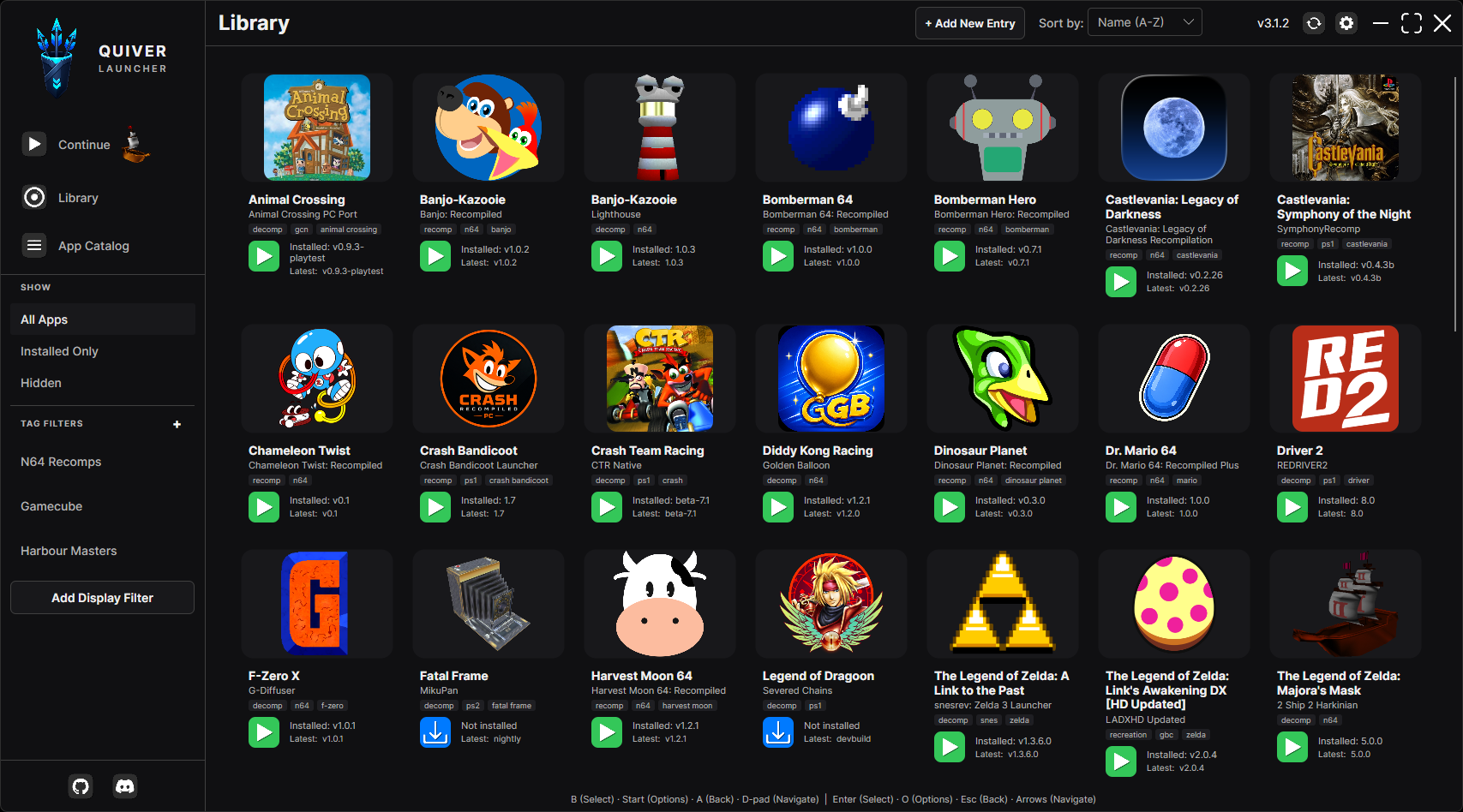
A modern launcher for downloading, installing, and running apps from GitHub and GitLab releases. With a personal library, community catalog subscriptions, and flexible filtering.
apps.jsonNote if you are upgrading from 2.4.x or older: the in-app update cannot migrate Quiver Launcher 2.4.x onto version 3.0 or higher. Download a fresh 3.x version of Quiver Launcher and copy your library over. See MIGRATING.md.
Windows
1. Download QuiverLauncher-win-Portable.zip from Releases
2. Extract it
3. Run QuiverLauncher.exe from the extracted folder
Your library stays in that same folder (apps.json, settings.json, Apps/, Cache/ next to current/), so you can move the whole directory wherever you want.
QuiverLauncher/
├── QuiverLauncher.exe          # launcher stub
├── current/            # app binaries (replaced on update)
├── apps.json
├── settings.json
├── Apps/
└── Cache/
To verify a signed QuiverLauncher.exe: right-click → Properties → Digital Signatures, or Get-AuthenticodeSignature .\QuiverLauncher.exe in PowerShell.
Linux
1. Download QuiverLauncher-linux-x64.AppImage or QuiverLauncher-linux-arm64.AppImage from Releases
2. Put the AppImage in its own folder (it creates library files beside itself), mark it executable, then run it:
   mkdir -p ~/QuiverLauncher
   mv QuiverLauncher*.AppImage ~/QuiverLauncher/
   cd ~/QuiverLauncher
   chmod +x QuiverLauncher*.AppImage
   ./QuiverLauncher*.AppImage
Library data (apps.json, settings.json, Apps/, Cache/) is stored beside the AppImage so you can move that folder together. If the AppImage’s directory is not writable (e.g. /usr/local/bin), Quiver Launcher falls back to ~/.local/share/QuiverLauncher/ (or $XDG_DATA_HOME/QuiverLauncher).
MyFolder/
├── QuiverLauncher-linux-x64.AppImage
├── apps.json
├── settings.json
├── Apps/
└── Cache/
macOS
Currently macOS support is a work in progress.
1. Download the macOS package from Releases
2. Keep QuiverLauncher.app in a writable folder (not only /Applications if you want portable data)
Library data lives beside QuiverLauncher.app in that folder. If the parent directory is not writable, Quiver Launcher falls back to ~/Library/Application Support/QuiverLauncher/.
MyFolder/
├── QuiverLauncher.app
├── apps.json
├── settings.json
├── Apps/
└── Cache/
Quiver keeps verified library snapshots in Backups/apps/ alongside apps.json
on Windows, Linux, macOS, and Android. See library protection and recovery for how to restore a snapshot if the library becomes damaged.
1. Launch the application
2. On first launch, browse the Quiver Community App Catalog lists (internet required) and use Review or View to add apps to your library. You can also add apps later with + Add New Entry, including manually managed apps that have no GitHub/GitLab repository. Your library is stored in local apps.json
3. Browse your app library in the Library view
4. Click the Download/Launch button on the app/game you want to use
Catalog lists refresh on startup and via Refresh All Sources. New lists in the community catalog repo appear automatically.
read_api at GitLab personal access tokens. Paste it into GitLab API Token. Public gitlab.com releases work without a token.Apps can expose a Mods browser when mods.path and mods.sources are set in the catalog entry (or via + Add New Entry).
Optional mods.layout:
| Value | Behavior |
|-------|----------|
| (omitted) / flat | Extract archive paths as-is into the mods folder (default; typical for Thunderstore .nrm packs). |
| folderPerMod | If the archive has payload files at its root, wrap everything in a folder named from the download filename (e.g. Music-FRLG.zip → mods/Music-FRLG/). Archives that already use a top-level folder are left unchanged. |
Use folderPerMod for apps that expect each mod in its own subfolder. Enable it in the catalog JSON or with Install each mod into its own folder when editing an entry.
Source URL formats (one per line in Mod Sources):
| Provider | Examples |
|----------|----------|
| Thunderstore | https://thunderstore.io/c/banjo-recompiled/ or slug banjo-recompiled |
| GameBanana | https://gamebanana.com/mods/games/24774, https://gamebanana.com/games/24774, or bare id 24774 |
GameBanana URLs are detected automatically (no gamebanana| prefix required). Other hosts can still use provider|url.
Browse & search
https://raw.githubusercontent.com/tgeorgiadis/quiver-community-app-catalog/main/index.json
List files live under community-app-catalog/ in the community catalog repo. Quiver Launcher discovers them from the index at runtime. Each list file carries its own metadata (name, description, version) plus an apps array.
The remote index is a registry of list IDs and fetch URLs only:
{
  "version": 2,
  "lists": [
    {
      "id": "b4e8c2a1-3f5d-4e9b-8c7a-1d2e3f4a5b6c",
      "remoteLocation": "https://raw.githubusercontent.com/tgeorgiadis/quiver-community-app-catalog/main/community-app-catalog/N64-Recomps.json"
    }
  ]
}
Each list file defines the list metadata and its apps:
{
  "name": "N64 Recomps",
  "description": "N64 recompilation ports",
  "version": "1.0.3",
  "apps": [
    {
      "name": "Example App",
      "repository": "username/example-app-repo",
      "folderName": "ExampleApp",
      "appIconUrl": null
    }
  ]
}
Quiver Launcher reads name, description, and version from the list file when a source is fetched or refreshed.
Use App Catalog anytime to review community entries and add the ones you want to your library. Installed app files on disk are never deleted automatically when you remove catalog entries or sources.
You can add more catalogs in App Catalog → Add Source (remote raw GitHub URL or local file path). Each source is reviewed separately; your local apps.json takes priority when the same repository appears in multiple places.
When a subscribed list changes remotely, Quiver Launcher detects the diff on startup or when you click Refresh All Sources, then shows Review changes with per-app actions (Add, Replace, Merge, Ignore, Hide). Use Not in library to browse catalog apps you haven't added yet (including ignored ones). When every review item is synced or resolved, the catalog version is marked reviewed automatically. Use Skip & mark reviewed only to dismiss remaining items without syncing them.
Merge applies catalog metadata (name, icon, files, mods, and catalog tags) while keeping extra local tags and version pins (preferredVersion). Replace applies the same catalog fields but drops extra local tags. Neither overwrites preferredVersion unless the app is promoted, demoted, or retargeted to a different repository. Extra local tags and version pins do not keep an app in a "Changed" state.
See the Quiver Community App Catalog repo for sample list format and the canonical community catalog.
Each app entry requires the following properties:
name - Canonical app/title (for ports, usually the game name). Library display can compose this with project via Settings → Library name styleproject (optional) - Project, team, or author attribution shown when library name style includes projectcustomDisplayName (optional) - Per-app library label override; always wins over name/project compositionrepository (required unless manually managed) - The repository path in the format username/repository (GitHub) or namespace/project (GitLab). The same repository may be used by more than one app when each has a distinct folderName (for example two games shipped in one GitHub release). Omit this field for manually managed apps: Quiver creates {Apps}/{folderName} and you place the files yourself. There is no download or update management until a repository is added. On Edit App Entry, filling in a repository promotes the app to a managed install (existing files are kept; Auto Update stays off until you update). Clearing the repository demotes it back to manual.repositorySource (optional) - github (default when omitted) or gitlab. Ignored for manually managed apps. Older Quiver Launcher versions ignore this field and treat entries as GitHub-only.folderName - The folder name under Apps where the app is installed (prefer Title-Project, without type suffixes like -Recomp). Must be unique. For manually managed apps this folder is created immediately as the drop target.releaseAssetFilter (optional) - Case-insensitive substring matched against release filenames. Use this when one repository ships more than one game so each app downloads only its files (e.g. EXIT1 / EXIT2). Ignored for manually managed apps.tags (optional) - Freeform tags (classification such as recomp / decomp lives here, not in the title)appIconUrl - URL of the app's icon image. If null, a default icon will be used.preferredTagFilters — chips that appear first when reviewing that list, ordered by how often they appear on appshiddenTagFilters — chips that never appear in that list's review filters (also omitted from frequency counts)featuredTags — fallback pin list when preferredTagFilters is omitted or empty{
"name": "Nintendo 64",
"preferredTagFilters": ["recomp", "decomp", "recreation", "ai"],
"hiddenTagFilters": ["n64", "nintendo"],
"featuredTags": ["recomp", "decomp", "recreation", "ai"],
"apps": [
{
"name": "Majora's Mask",
"project": "2 Ship 2 Harkinian",
"repository": "HarbourMasters/2ship2harkinian",
"folderName": "MajorasMask-2Ship2Harkinian",
"tags": ["n64", "decomp", "harbour-masters"],
"appIconUrl": null
},
{
"name": "Example App",
"repository": "username/example-app-repo",
"folderName": "ExampleApp",
"appIconUrl": null
},
{
"name": "GitLab Example App",
"repository": "namespace/example-project",
"repositorySource": "gitlab",
"folderName": "GitLabExampleApp",
"appIconUrl": null
},
{
"name": "Manually Managed Example",
"project": "Itch drop",
"folderName": "ManualExample",
"tags": ["manual"],
"appIconUrl": null
}
]
}
If you encounter any issues or have questions:
When building and running from source, Quiver Launcher is not a packaged release install, so self-update checks no-op (and Debug builds always skip automatic checks). Set QuiverLauncher_SKIP_UPDATES=1 (or true) to skip automatic checks in Release local runs as well.
# Debug: no env var needed
dotnet run --project QuiverLauncher.Desktop/QuiverLauncher.Desktop.csproj -c Debug
Release local testing
$env:QuiverLauncher_SKIP_UPDATES = "1"
dotnet run --project QuiverLauncher.Desktop/QuiverLauncher.Desktop.csproj -c Release
Requires the .NET 10 SDK.
Android uses a separate head project (QuiverLauncher.Android) that installs and launches APK release assets. Desktop binaries (.exe, AppImage, Wine/Proton) are not supported on device.
1. Install the .NET 10 SDK and the Android workload:
dotnet workload install android
dotnet build QuiverLauncher.Android/QuiverLauncher.Android.csproj -c Debug
Games without an Android .apk asset stay in the catalog as “no Android build” rather than a failed download.
User data for unpackaged Windows debug builds still lives beside the build output. Unpackaged macOS/Linux runs (no AppImage / .app package) use the OS app-support fallbacks (~/Library/Application Support/QuiverLauncher/ or ~/.local/share/QuiverLauncher/).
Fast local run (excludes the slow publish integration test; finishes in seconds):
dotnet test QuiverLauncher.sln -c Release --filter "Category!=Slow" --logger "console;verbosity=normal"
Full suite including publish integration test (matches CI; the publish test can take several minutes):
dotnet test QuiverLauncher.sln -c Release
Run only the slow publish packaging test:
dotnet test QuiverLauncher.sln -c Release --filter "Category=Slow"
Test categories include catalog merge and sync, settings store round-trip, launcher version helpers, Windows runner command building, download asset selection, game status checks, ViewModel sorting/catalog helpers, GameManager hide/filter behavior, and Avalonia headless smoke tests.
Collect coverage locally with:
dotnet test QuiverLauncher.sln -c Release --filter "Category!=Slow" --collect:"XPlat Code Coverage"
 →
→ →
→ →
→ →
→ →
→ →
→ →
→