1
 →
→
Formerly KrillinAI, VideoTranslation and Dubbing Tool. Open-source AI workspace for creators, powered by Codex.
krillinai/OpenCreator is an open-source project on GitHub, mainly written in TypeScript. Formerly KrillinAI, VideoTranslation and Dubbing Tool. Open-source AI workspace for creators, powered by Codex. It currently holds 14,049 stars and 1,549 forks with 41 open issues, and was last pushed on 2026-10-30 (repository created 2024-12-17).
Git Homed tracks it on the Image Trending board and on the AI Image Trending list.

Bring visual settings, reusable Skills, and Agents together for scripts, video, images, voice, translation, and editing—all in one workspace.
OpenCreator was formerly known as KrillinAI.
English | 简体中文 | 日本語 | 한국어 | Bahasa Indonesia | Español | Français | Deutsch | Português | Русский | العربية | ภาษาไทย | Türkçe | हिन्दी | বাংলা | اردو | Tiếng Việt | Filipino

Highlights · Creator Tools · Skills · Examples · Quick Start · Desktop · Docs · Community
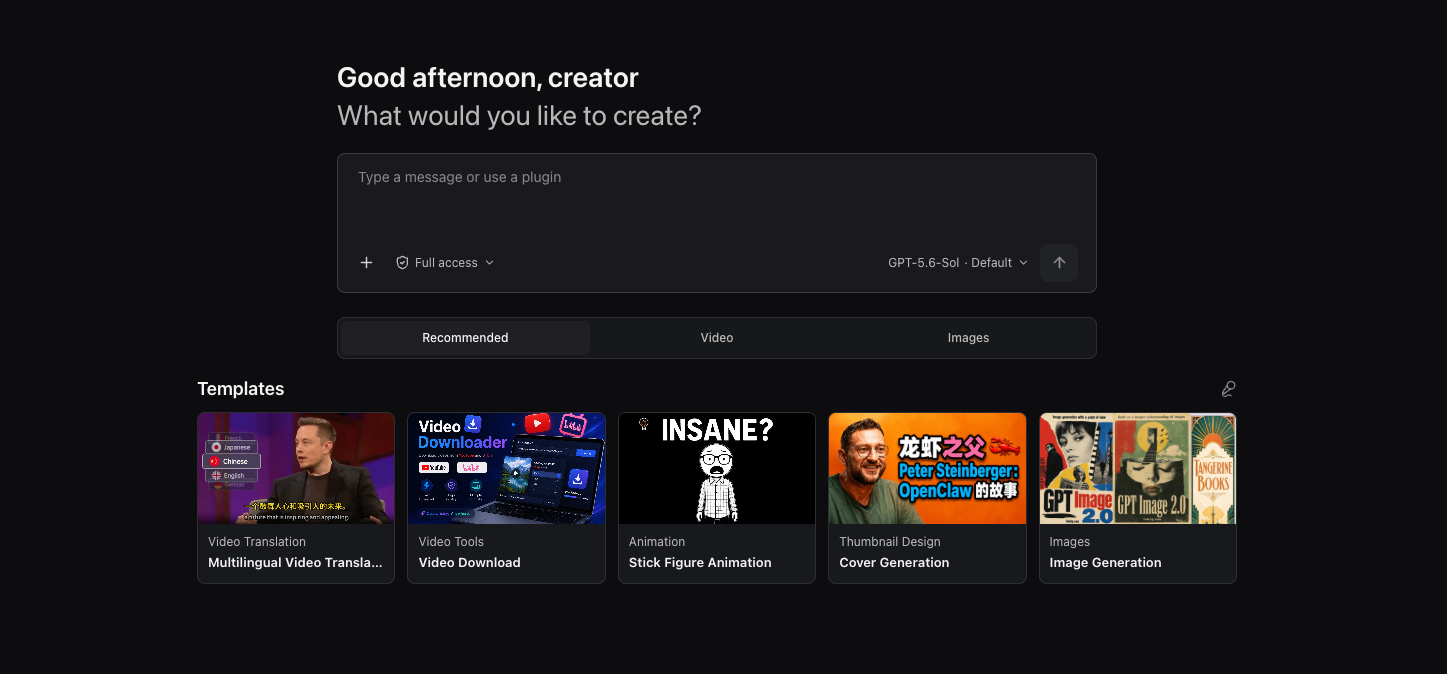
OpenCreator is built for individuals and teams who want to keep creative and development work running locally. Instead of reimplementing an Agent loop, it uses Codex CLI as the execution engine and adds a stable local Runtime, a visual workspace, and a Desktop host around it.
OpenCreator offers two connected ways to work:
The current release includes ten creator tools. Available models and services depend on your local Codex environment and AI service settings.
Open the Dashboard to write articles, Xiaohongshu posts, or short-video scripts; create stick figure animations; translate or download videos; generate thumbnails, images, or videos; and create voiceovers with Text to Speech.
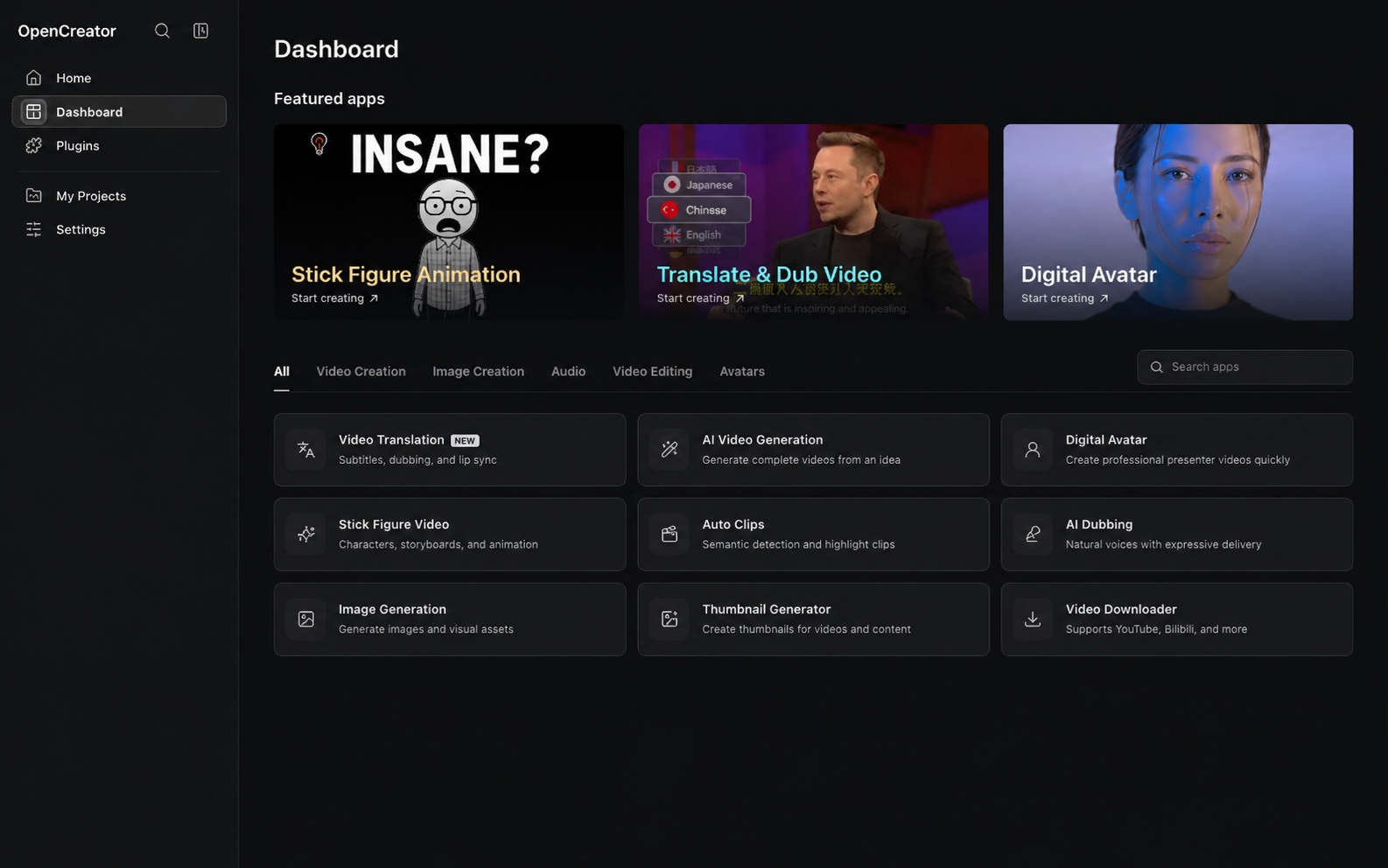
More creator tools are continuously being added.
Video Translation offers 123 source languages and 124 target options, including Pinyin output. Search by native name, English name, Chinese name, or language code. Speech recognition and dubbing coverage depend on the selected service and model; the language catalog does not mean every model supports every language.
| Workspace | Status | Capabilities |
|---|---|---|
| Video Translation | ✅ Available | Import local or public videos; transcribe with cloud or local Whisper services; use LLM context for subtitle segmentation, alignment, terminology, and translation; configure bilingual subtitles, dubbing or a custom voice sample, subtitle styles, landscape or portrait composition, and export SRT, audio, or video |
| Video Downloader | ✅ Available | Analyze individual public videos from YouTube, Bilibili, X, TikTok, Instagram, Douyin, Facebook, Xiaohongshu, Pinterest, and Reddit; compare available formats and download video or audio. Some sources may require platform cookies. When platform captions are available, preview the subtitle list and download SRT; English appears first, followed by the interface language when available. |
| Thumbnail Generator | ✅ Available | Combine a topic, video link, and optional reference image to generate and compare multiple content-thumbnail variations |
| Image Generation | ✅ Available | Generate with GPT Image / Seedream / Kling Image / Gemini from a prompt and optional reference image, configure the aspect ratio and output count, then preview and download individual images |
| Article Writer | ✅ Available | Turn a topic, links, videos, or source documents into editable topic options, an outline, and a complete article; add generated images and export Markdown, HTML, or PDF |
| Xiaohongshu Posts | ✅ Available | Generate a complete Xiaohongshu post from a topic or source material, with controls for the target audience, post type, and length, then copy or download the result |
| Short Video Script | ✅ Available | Create a shoot-ready segmented script from a topic or source material, tailored to the audience, platform, duration, and tone, then edit, copy, or download it |
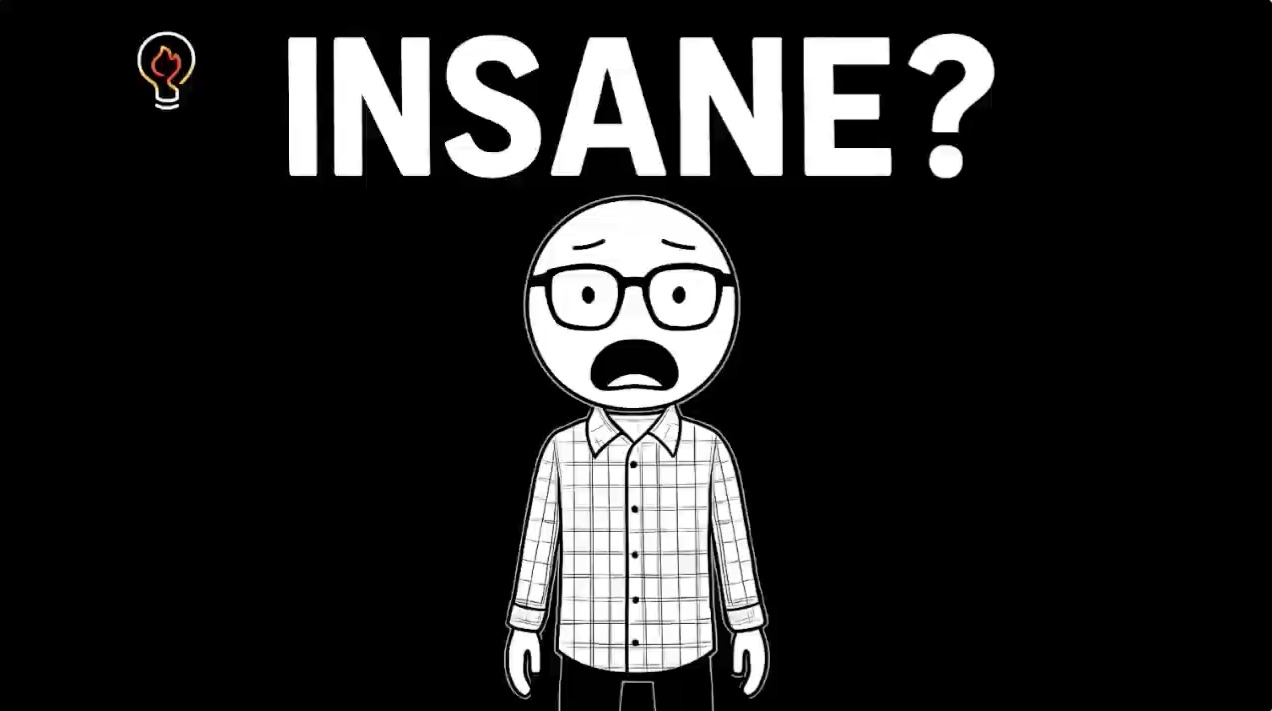
| Stick Figure Animation | ✅ Available | Turn text or YouTube content into narration, voice, consistent-character storyboard visuals, subtitles, and a downloadable stick figure animation |
| Auto Clips | In development | Analyze long videos, identify highlights, and turn selected moments into reusable short clips |
| Text to Speech | ✅ Available | Turn scripts into voiceovers with selectable voices, pacing, and emotion controls |
| Video Generation | ✅ Available | Generate videos with Seedance / Kling / Veo from prompts and reference images, then preview, regenerate, and download each version |
| Digital Avatar | In development | Combine scripts, voice, and avatar presentation to produce talking-head videos |
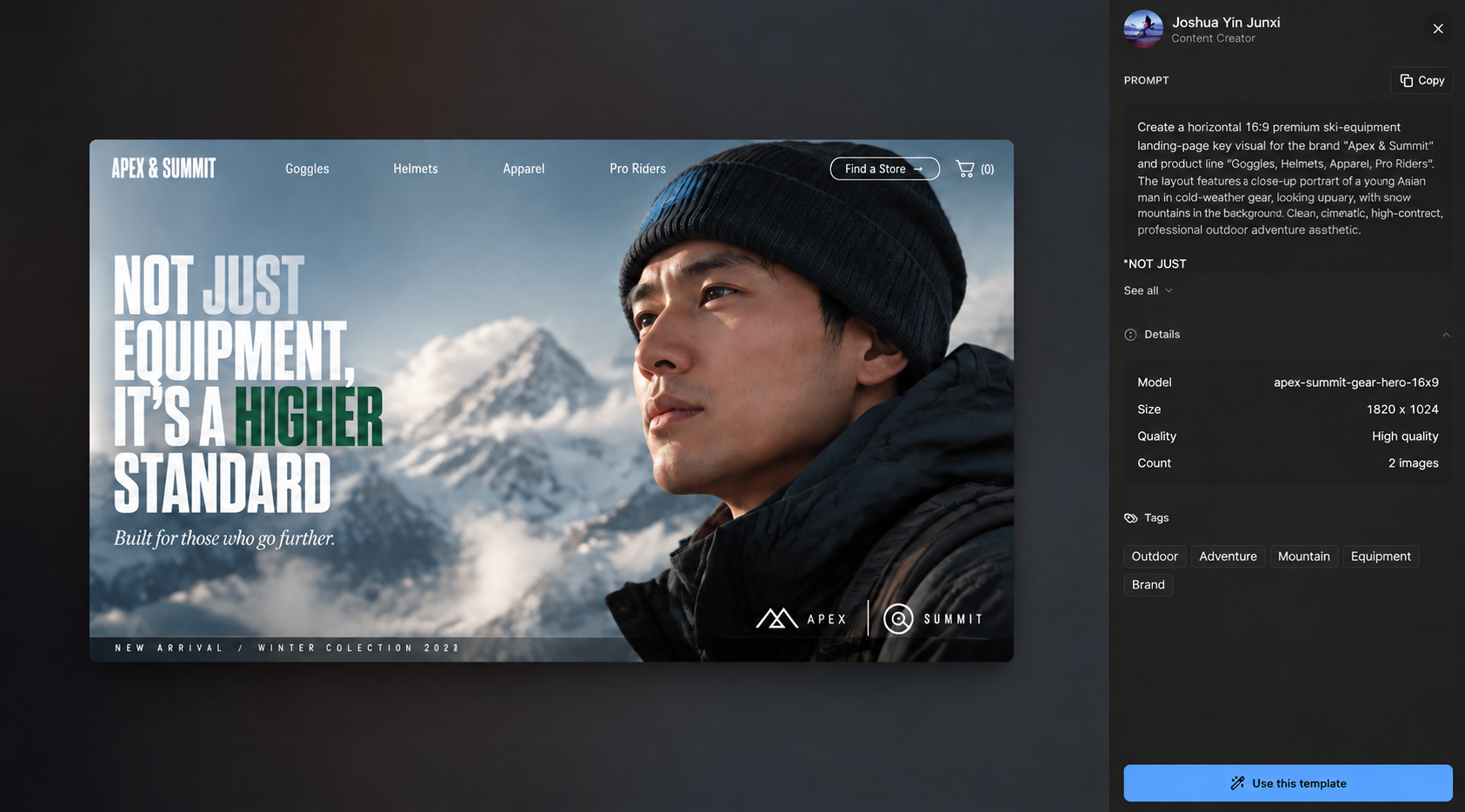
Start creating from a template instead of building every prompt and setting from scratch. Browse featured templates by category, including video creation and image design, to find a starting point for your idea.
The collection brings together templates created by OpenCreator and by independent creators. Third-party templates credit their creators and link to the original source on the template detail page.
Open a template to preview its example result and inspect its prompt, settings, tags, author, and original source. Select Use this template to start creating with it, then adjust the inputs for your own work.
Creator tools provide visual controls; Skills give the Agent reusable instructions and tool workflows. OpenCreator includes video-production Skills in the repository, alongside support for managing local Codex Skills.
The repository's skills/ directory contains reusable instructions for Agents operating the embedded KrillinAI CLI.
| Skill | Capabilities | | --- | --- | | KrillinAI CLI | Choose commands, check configuration, and interpret progress, manifests, outputs, and errors | | Subtitle | Download platform captions or transcribe media, translate subtitles, and produce bilingual or short portrait subtitles | | TTS | Generate target-language dubbing from subtitles and optionally produce a dubbed video | | Landscape Render | Render landscape videos with bilingual subtitles or dubbed audio and target-language subtitles | | Portrait Render | Compose portrait videos with titles, bilingual subtitles, or dubbing | | Cover | Generate a cover image from a complete text prompt and save the image and final prompt | | Pipeline Plan | Validate a multi-stage output plan in dry-run mode; execute actual work through the individual stage Skills |
OpenCreator supports local Codex Skills defined by SKILL.md, so you can add your own methods and workflows rather than relying only on fixed creator tools. Skill availability depends on the active Codex home and installed Skills; video workflow Skills require the CLI and relevant services to be configured. Inclusion in the repository does not mean every Skill is automatically installed or every external service is bundled.
Describe tasks naturally, then step into visual tools whenever you need precise control.
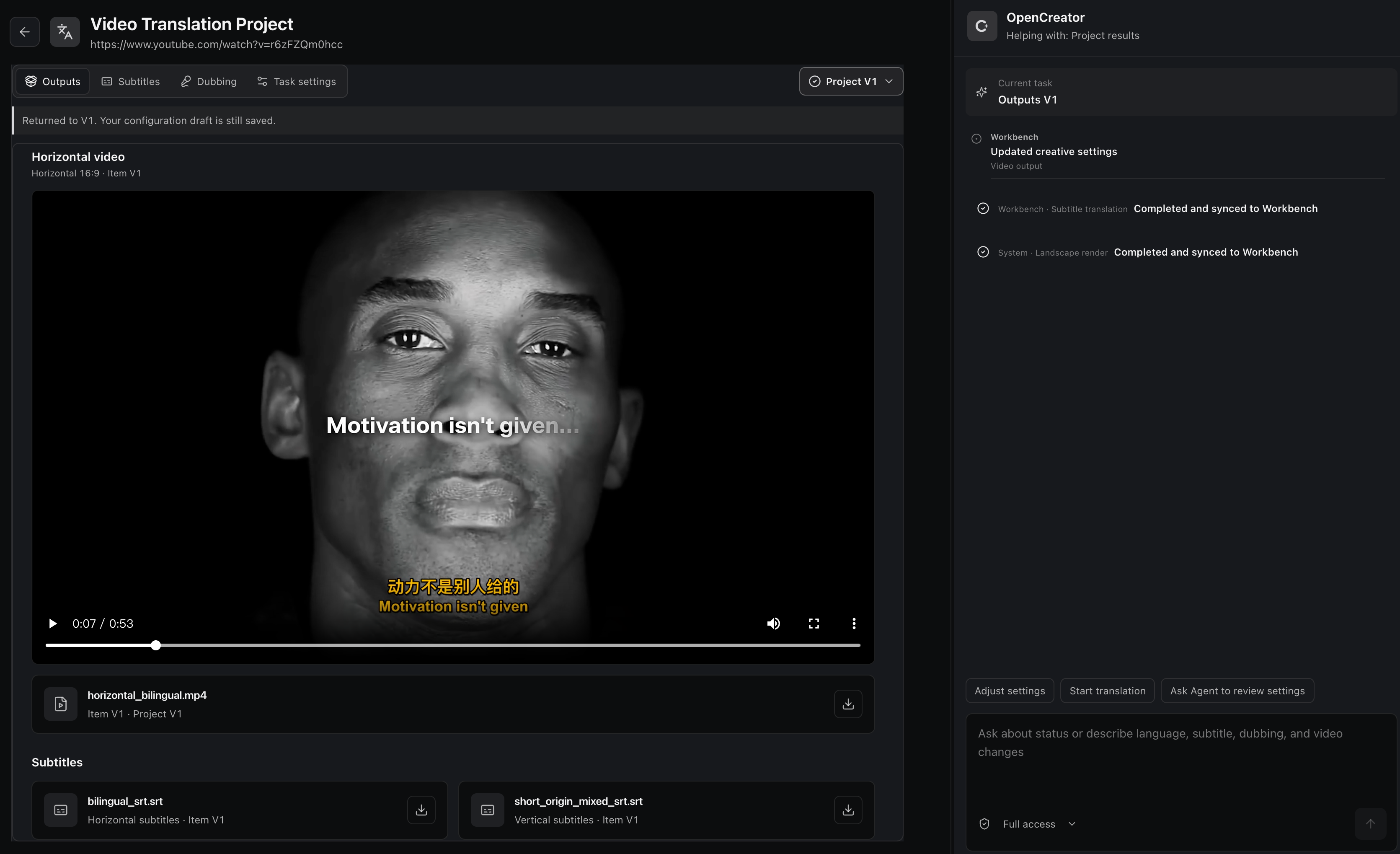
Adjust subtitles, shots, audio, and generation settings precisely.
Tell the Agent what to change and refine the result in natural language.
Conversation and workspace share the current task state, so nothing needs repeating.
Each revision creates a separate version without overwriting earlier results or settings.
Language model availability follows the Codex model catalog or your OpenAI-compatible provider. Image, video, voice, and transcription models use the services configured in Settings → AI Services.
The providers and models shown are examples; actual availability depends on your credentials, provider account access, and platform.
 GPT |
 DeepSeek |
 Qwen |
 Kimi |
 GLM |
 Grok |
 Doubao |
 ERNIE |
 Hunyuan |
 MiniMax |
GPT Image |
 Seedream 4.0 Jimeng |
 Kling v2.1 Kling Image |
 Nano Banana Gemini 2.5 Flash Image |
 Seedance 2.5 |
Kling v2.1 Master |
Veo 3.1 |
Whisper |
OpenAI TTS |
MiniMax |
 Edge TTS |
 Aliyun Speech |
 Volcengine Speech |
Local transcription also supports faster-whisper, WhisperKit, and whisper.cpp where available.
The public examples below were produced when OpenCreator was still named KrillinAI. They demonstrate the established subtitle alignment, translation, dubbing, and portrait-video workflow that OpenCreator's Video Translation workspace brings into a wider Agent workflow.
The project generated the subtitle file below from a 46-minute local video in one run, without manual subtitle adjustments. The published result shows complete coverage, no overlapping lines, natural segmentation, and high-quality translation.
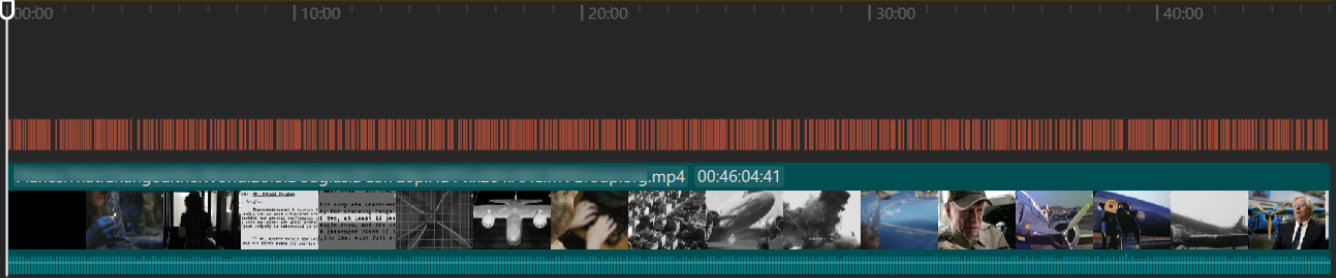
Subtitle Translationhttps://github.com/user-attachments/assets/bba1ac0a-fe6b-4947-b58d-ba99306d0339 |
Dubbinghttps://github.com/user-attachments/assets/0b32fad3-c3ad-4b6a-abf0-0865f0dd2385 |
Portrait Modehttps://github.com/user-attachments/assets/c2c7b528-0ef8-4ba9-b8ac-f9f92f6d4e71 |
These video examples and the subtitle alignment image were produced while OpenCreator still used the KrillinAI name.
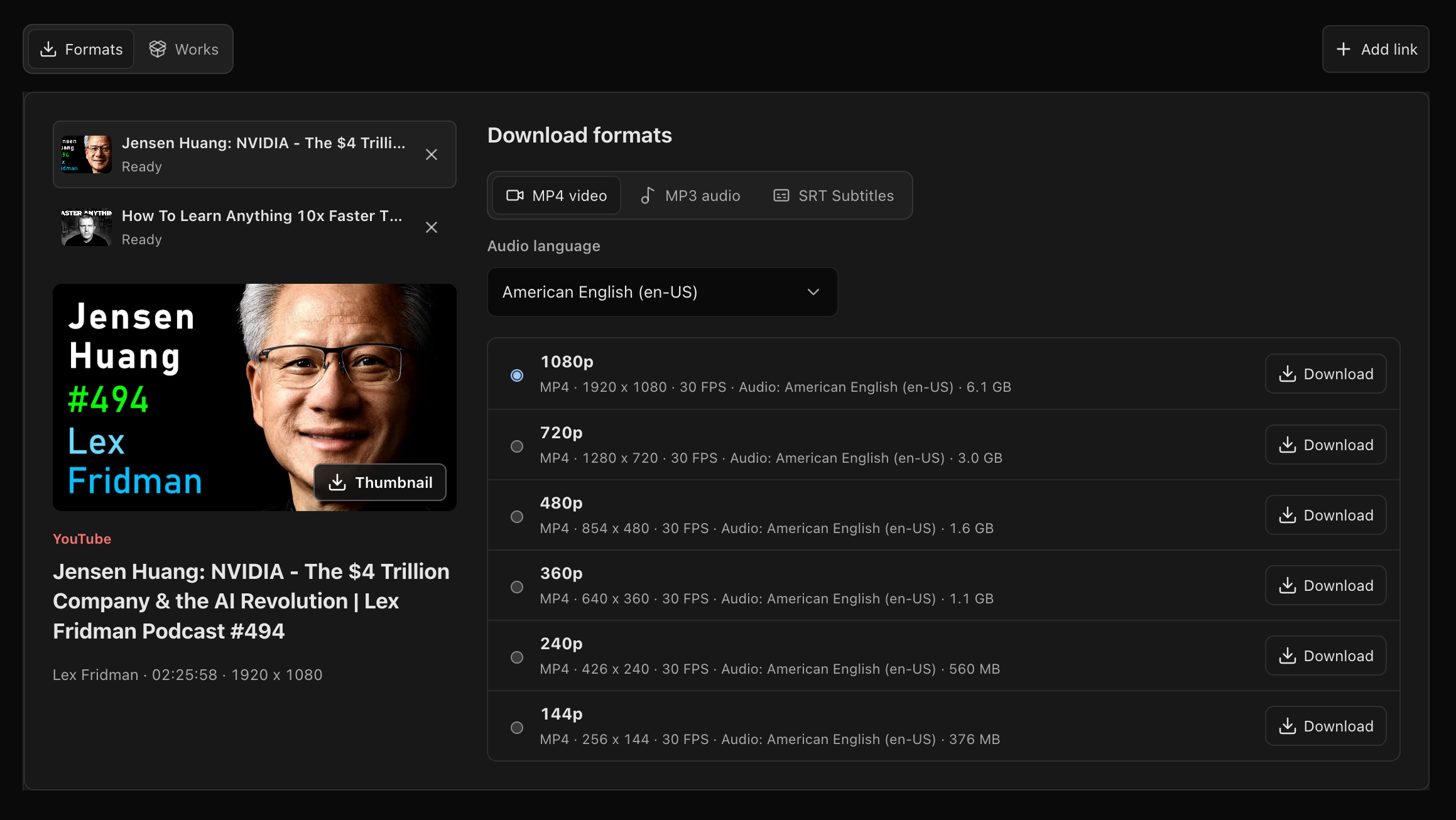
Analyze public video links from 10 supported platforms, compare available formats, and download video or audio directly to your project.
Supported video sources:
 YouTube |
 Bilibili |
 X |
 TikTok |
 |
 Douyin |
 |
 Xiaohongshu |
 |
 |
Availability varies by video and region; some sources may require platform cookies.
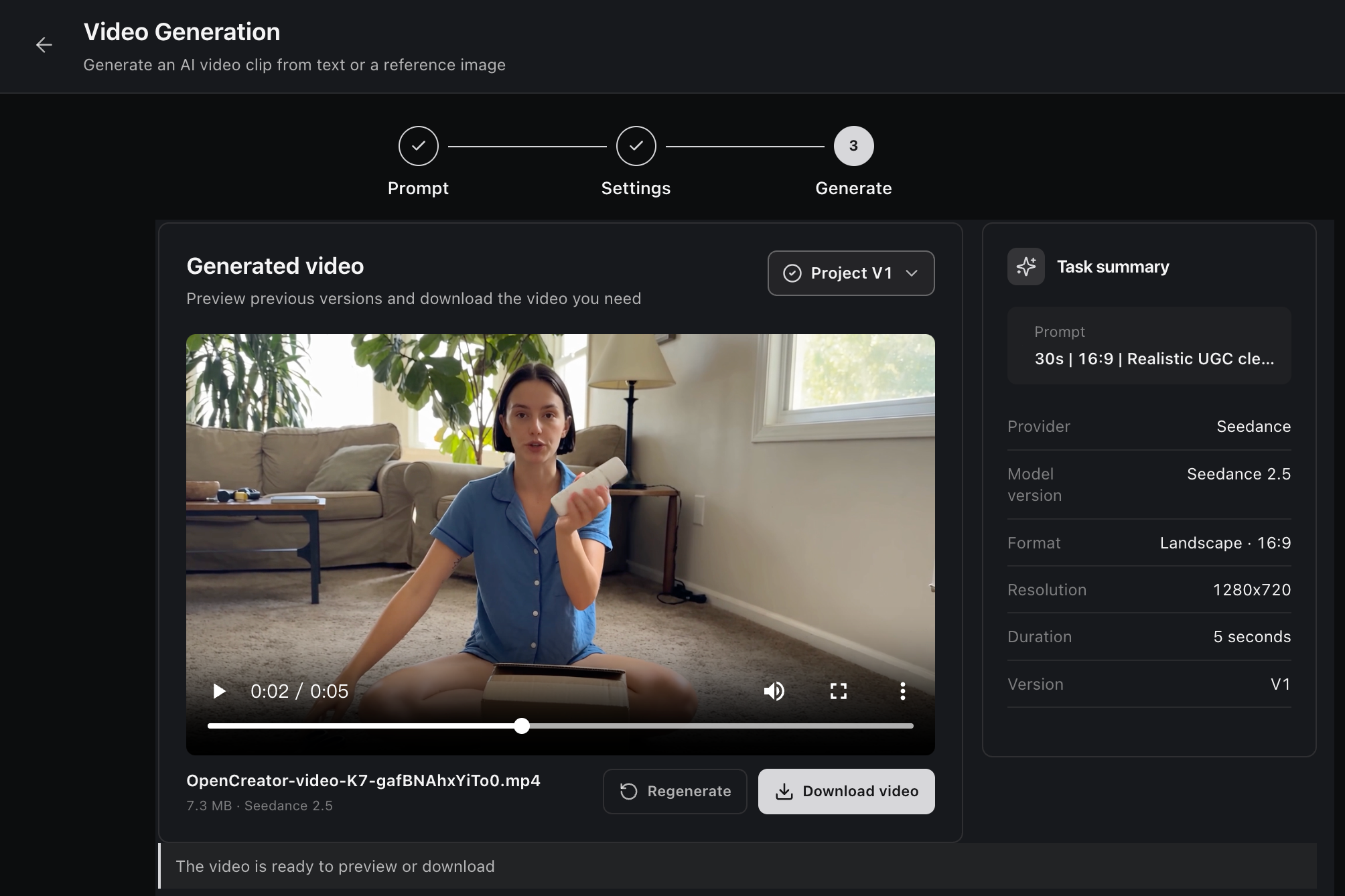
Generate an AI video from a text prompt or reference image with Seedance. Configure the model, aspect ratio, resolution, and duration, then preview, regenerate, or download each version from the project workspace.
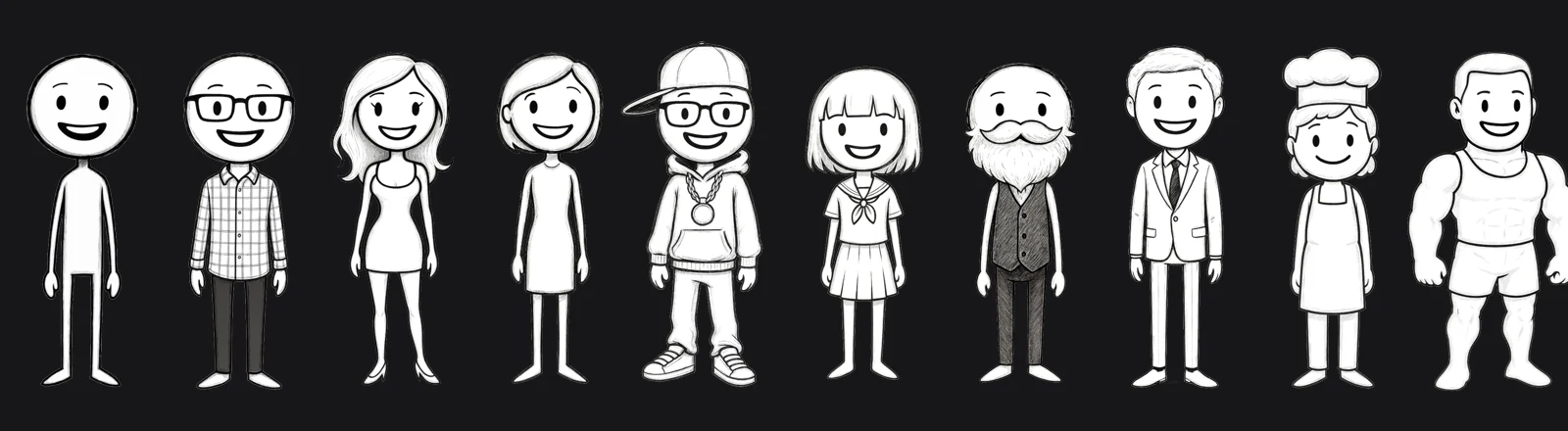
OpenCreator developed this original character collection in collaboration with artist Harbor Hsia, creator of Stickman on Behance. The built-in cast keeps character identities consistent throughout the animation workflow.
Turn text or YouTube content into a complete animation through a guided workflow for script review, narration, timing, storyboard visuals, subtitles, rendering, and downloadable video output.
Download the installer for your platform from the latest OpenCreator release (macOS Apple Silicon, macOS Intel, or Windows x64). Install and open the app; you do not need Node.js or pnpm to use the Desktop app. The Desktop package includes Codex CLI; real model tasks require a usable ChatGPT sign-in or API key setup.
On first launch, Desktop starts the local Runtime, prepares a default project, and checks your local Codex configuration. If it finds a usable sign-in or API key and model settings, confirm Use local Codex and continue to reuse them. You can also configure another provider in the same startup flow:
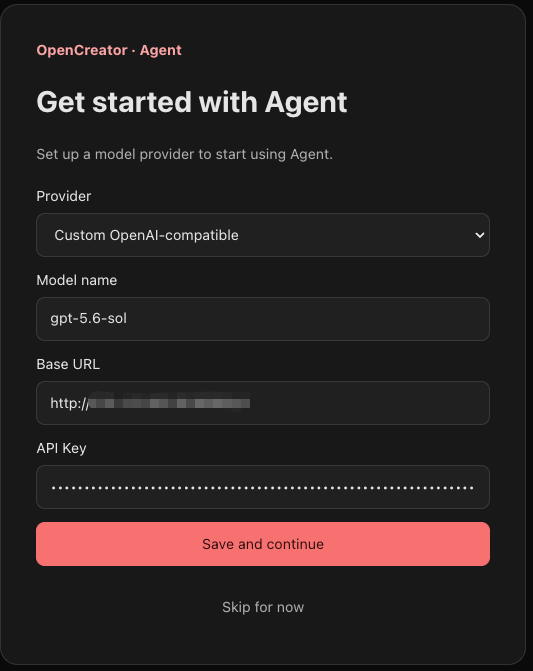
After setup, enter your request in the composer to start a task. If you run into trouble, see the user guide and troubleshooting.
For development or browser-based use, install:
→ →
→ →
→ →
→ →
→ →
→ →
→ →
→