
1
 →
→junegunn/fzf is an open-source project on GitHub, mainly written in Go. :cherry_blossom: A command-line fuzzy finder It currently holds 83,277 stars and 3,886 forks with 332 open issues, and was last pushed on 2026-09-27 (repository created 2013-10-23).
Git Homed tracks it on the Today's Trending board, currently at rank #85 with 21 new stars today.






---

Show your love for fzf -- T-shirts, mugs, and stickers now available!
commitgoods.com/collections/fzf
---
fzf is a general-purpose command-line fuzzy finder and an interactive terminal toolkit.
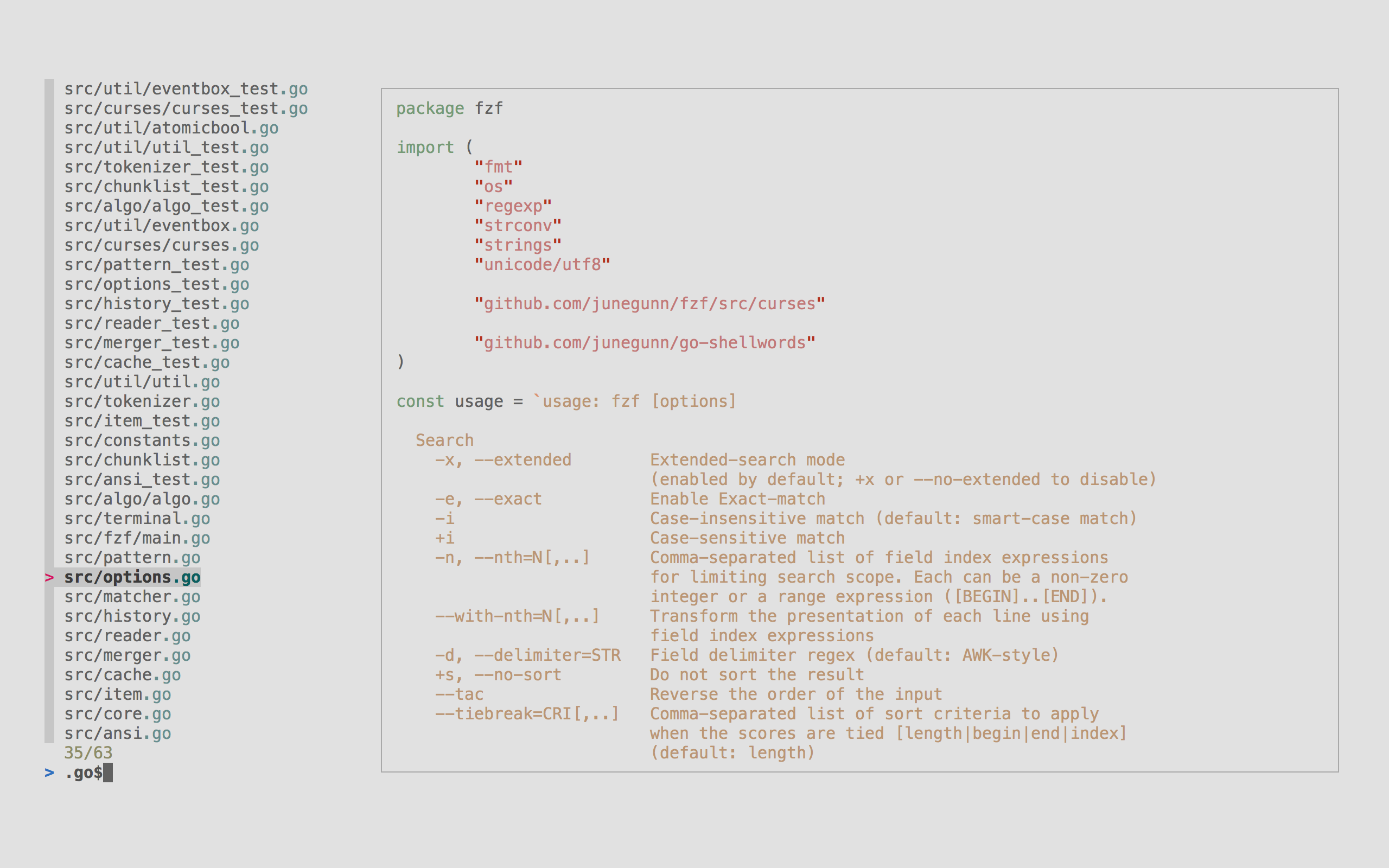
Whether you're selecting files, browsing command history, previewing data, navigating complex datasets with fuzzy matching, or creating custom menus and workflows, fzf provides the building blocks to turn shell scripts into rich terminal applications.
Highlights ----------
--height mode--popup mode.gitignoreInstallation ------------
You can use Homebrew (on macOS or Linux) to install fzf.
brew install fzf
[!IMPORTANT]
To set up shell integration (key bindings and fuzzy completion),
see the instructions below.
fzf is also available [via MacPorts][portfile]: sudo port install fzf
[portfile]: https://github.com/macports/macports-ports/blob/master/sysutils/fzf/Portfile
You can use mise to install fzf.
mise use -g fzf@latest
| Package Manager | Linux Distribution | Command |
| --------------- | ----------------------- | ---------------------------------- |
| APK | Alpine Linux | sudo apk add fzf |
| APT | Debian 9+/Ubuntu 19.10+ | sudo apt install fzf |
| Conda | | conda install -c conda-forge fzf |
| DNF | Fedora | sudo dnf install fzf |
| Nix | NixOS, etc. | nix-env -iA nixpkgs.fzf |
| Pacman | Arch Linux | sudo pacman -S fzf |
| pkg | FreeBSD | pkg install fzf |
| pkgin | NetBSD | pkgin install fzf |
| pkg_add | OpenBSD | pkg_add fzf |
| Portage | Gentoo | emerge --ask app-shells/fzf |
| Spack | | spack install fzf |
| XBPS | Void Linux | sudo xbps-install -S fzf |
| Zypper | openSUSE | sudo zypper install fzf |
[!IMPORTANT]
To set up shell integration (key bindings and fuzzy completion),
see the instructions below.

On Windows, fzf is available via [Chocolatey][choco], [Scoop][scoop], [Winget][winget], and [MSYS2][msys2]:
| Package manager | Command |
| --------------- | ------------------------------------- |
| Chocolatey | choco install fzf |
| Scoop | scoop install fzf |
| Winget | winget install fzf |
| MSYS2 (pacman) | pacman -S $MINGW_PACKAGE_PREFIX-fzf |
[choco]: https://chocolatey.org/packages/fzf [scoop]: https://github.com/ScoopInstaller/Main/blob/master/bucket/fzf.json [winget]: https://github.com/microsoft/winget-pkgs/tree/master/manifests/j/junegunn/fzf [msys2]: https://packages.msys2.org/base/mingw-w64-fzf
Alternatively, you can "git clone" this repository to any directory and run install script.
git clone --depth 1 https://github.com/junegunn/fzf.git ~/.fzf
~/.fzf/install
The install script will add lines to your shell configuration file to modify
$PATH and set up shell integration.
You can download the official fzf binaries from the releases page.
Add the following line to your shell configuration file.
  # Set up fzf key bindings and fuzzy completion
  eval "$(fzf --bash)"
  # Set up fzf key bindings and fuzzy completion
  source <(fzf --zsh)
  # Set up fzf key bindings
  fzf --fish | source
source, so the install # Generate the integration script
mkdir ($nu.default-config-dir | path join "autoload")
fzf --nushell | save -f ($nu.default-config-dir | path join "autoload" "_fzf_integration.nu")
[!NOTE]
--bash,--zsh,--fish, and--nushelloptions are only available in
recent versions of fzf. If you have an older version of fzf, or want finer control, you can
source individual script files in the /shell directory. The
location of the files may vary depending on the package manager you use.
Please refer to the package documentation for more information.
(e.g. apt show fzf)
[!TIP]
You can disable CTRL-T, CTRL-R, or ALT-C bindings by setting the
corresponding *_COMMAND variable to an empty string when sourcing the
script. For example, to disable CTRL-R and ALT-C:
> * bash: FZF_CTRL_R_COMMAND= FZF_ALT_C_COMMAND= eval "$(fzf --bash)"
* zsh: FZF_CTRL_R_COMMAND= FZF_ALT_C_COMMAND= source <(fzf --zsh)
* fish: fzf --fish | FZF_CTRL_R_COMMAND= FZF_ALT_C_COMMAND= source
* nushell: add to your env.nu:
$env.FZF_CTRL_R_COMMAND = ""; $env.FZF_ALT_C_COMMAND = ""
> Setting the variables after sourcing the script will have no effect.
If you use vim-plug, add this to your Vim configuration file:
Plug 'junegunn/fzf', { 'do': { -> fzf#install() } }
Plug 'junegunn/fzf.vim'
junegunn/fzf provides the basic library functionsfzf#install() makes sure that you have the latest binaryjunegunn/fzf.vim is a separate projectTo learn more about the Vim integration, see README-VIM.md.
[!TIP]
If you use Neovim and prefer Lua-based plugins, check out
fzf-lua.
Upgrading fzf -------------
fzf is being actively developed, and you might want to upgrade it once in a while. Please follow the instruction below depending on the installation method used.
cd ~/.fzf && git pull && ./installbrew update; brew upgrade fzfsudo port upgrade fzfchoco upgrade fzf:PlugUpdate fzfSee BUILD.md.
Usage -----
fzf will launch interactive finder, read the list from STDIN, and write the selected item to STDOUT.
find * -type f | fzf > selected
Without STDIN pipe, fzf will traverse the file system under the current directory to get the list of files.
vim $(fzf)
[!NOTE]
You can override the default behavior
* Either by setting $FZF_DEFAULT_COMMAND to a command that generates the desired list
* Or by setting--walker,--walker-root, and--walker-skipoptions in$FZF_DEFAULT_OPTS
[!WARNING]
A more robust solution would be to use xargs but we've presented
the above as it's easier to grasp
> fzf --print0 | xargs -0 -o vim
[!TIP]
fzf also has the ability to turn itself into a different process.
>> fzf --bind 'enter:become(vim {})'
> *See Turning into a different process
for more information.*
CTRL-K / CTRL-J (or CTRL-P / CTRL-N) to move cursor up and downEnter key to select the item, CTRL-C / CTRL-G / ESC to exit-m), TAB and Shift-TAB to mark multiple itemsfzf by default runs in fullscreen mode, but there are other display modes.
--height modeWith --height HEIGHT[%], fzf will start below the cursor with the given height.
fzf --height 40%
reverse layout and --border goes well with this option.
fzf --height 40% --layout reverse --border
By prepending ~ to the height, you're setting the maximum height.
# Will take as few lines as possible to display the list
seq 3 | fzf --height ~100%
seq 3000 | fzf --height ~100%
Height value can be a negative number.
# Screen height - 3
fzf --height -3
--popup modeWith --popup option, fzf will start in a popup window
(requires tmux 3.3+ or Zellij 0.44+).
# --popup [center|top|bottom|left|right][,SIZE[%]][,SIZE[%][,border-native]]
fzf --popup center         # Center, 50% width and height
fzf --popup 80%            # Center, 80% width and height
fzf --popup 100%,50%       # Center, 100% width and 50% height
fzf --popup left,40%       # Left, 40% width
fzf --popup left,40%,90%   # Left, 40% width, 90% height
fzf --popup top,40%        # Top, 40% height
fzf --popup bottom,80%,40% # Bottom, 80% width, 40% height
--popup is silently ignored when you're not on tmux or Zellij.
[!NOTE]
If you're stuck with an old version of tmux that doesn't support popup,
or if you want to open fzf in a regular tmux pane, check out
fzf-tmux script.
[!TIP]
You can add these options to $FZF_DEFAULT_OPTS so that they're applied by
default. For example,
>> # Open in a popup if on tmux or Zellij, otherwise use --height mode
export FZF_DEFAULT_OPTS='--height 40% --popup bottom,40% --layout reverse --border top'
Unless otherwise specified, fzf starts in "extended-search mode" where you can type in multiple search terms delimited by spaces. e.g. `^music .mp3$ sbtrkt !fire`
| Token | Match type | Description |
| --------- | -------------------------------------- | ------------------------------------------ |
| sbtrkt | fuzzy-match | Items that match sbtrkt |
| 'wild | exact-match (quoted) | Items that include wild |
| 'wild' | exact-boundary-match (quoted both ends) | Items that include wild at word boundaries |
| ^music | prefix-exact-match | Items that start with music |
| .mp3$ | suffix-exact-match | Items that end with .mp3 |
| !fire | inverse-exact-match | Items that do not include fire |
| !^music | inverse-prefix-exact-match | Items that do not start with music |
| !.mp3$ | inverse-suffix-exact-match | Items that do not end with .mp3 |
If you don't prefer fuzzy matching and do not wish to "quote" every word,
start fzf with -e or --exact option. Note that when --exact is set,
'-prefix "unquotes" the term.
A single bar character term acts as an OR operator. For example, the following
query matches entries that start with core and end with either go, rb,
or py.
^core go$ | rb$ | py$
FZF_DEFAULT_COMMANDexport FZF_DEFAULT_COMMAND='fd --type f'FZF_DEFAULT_OPTSexport FZF_DEFAULT_OPTS="--layout=reverse --inline-info"FZF_DEFAULT_OPTS_FILEexport FZF_DEFAULT_OPTS_FILE=~/.fzfrc[!WARNING]
FZF_DEFAULT_COMMAND is not used by shell integration due to theslight difference in requirements.
> *CTRL-Truns$FZF_CTRL_T_COMMANDto get a list of files and directories
*ALT-Cruns$FZF_ALT_C_COMMANDto get a list of directories
*vim ~/**runsfzf_compgen_path()with the prefix (~/) as the first argument
*cd foo**runsfzf_compgen_dir()with the prefix (foo) as the first argument
> The available options are described later in this document.
The user interface of fzf is fully customizable with a large number of
configuration options. For a quick setup, you can start with one of the style
presets -- default, full, or minimal -- using the --style option.
fzf --style full \
    --preview 'fzf-preview.sh {}' --bind 'focus:transform-header:file --brief {}'
| Preset | Screenshot |
| :--- | :--- |
| default | 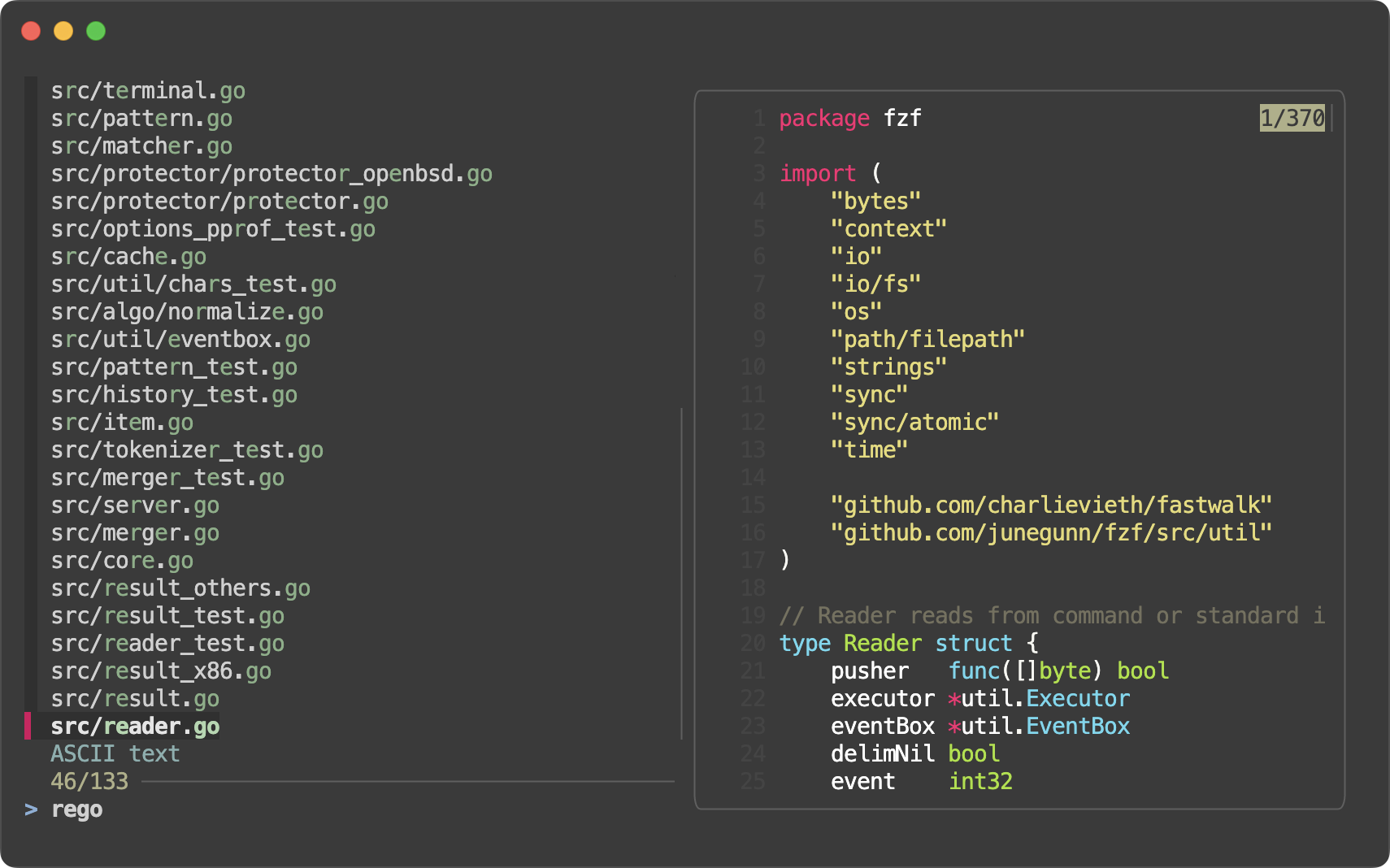 |
|
|
| full | 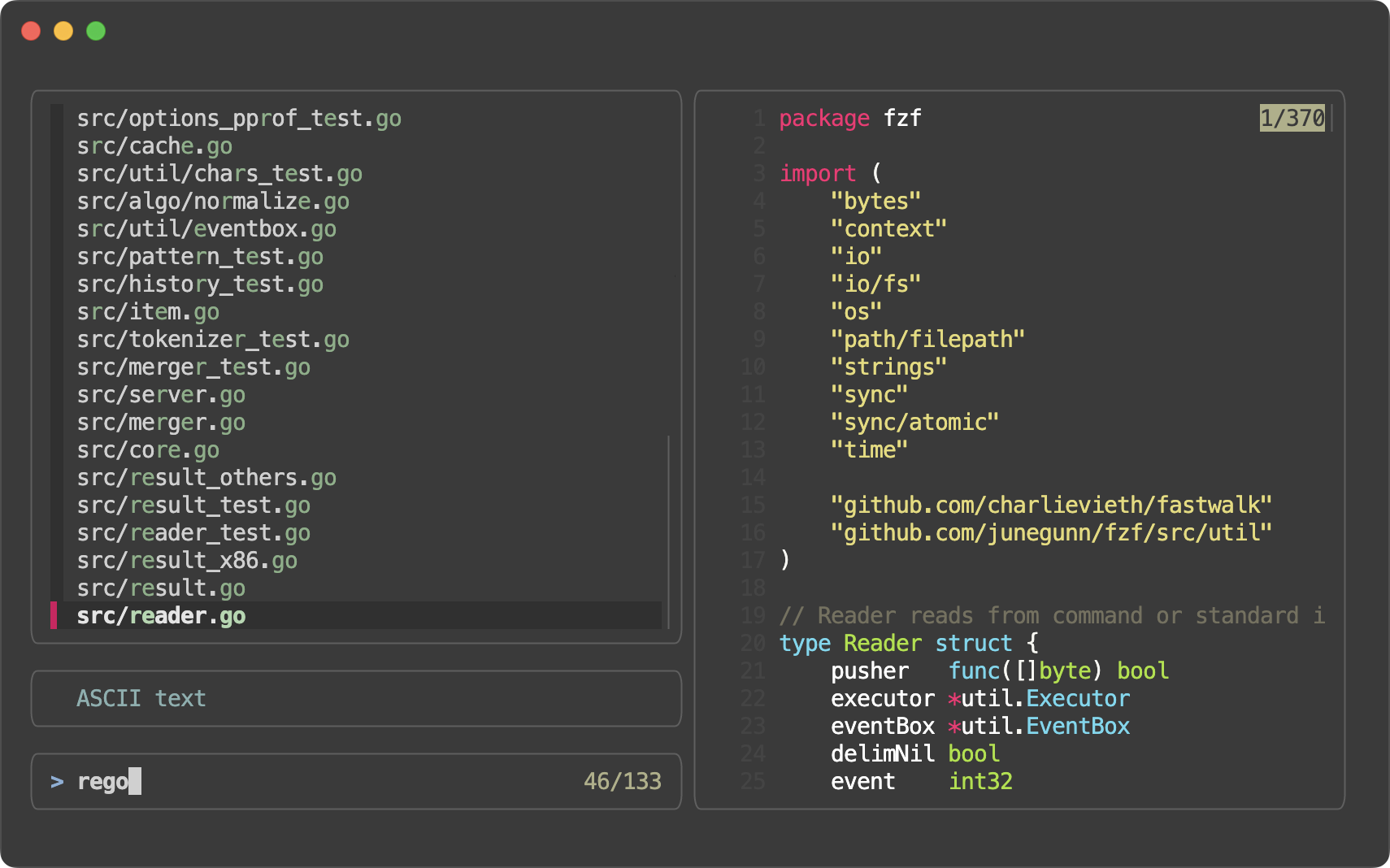 |
|
|
| minimal | 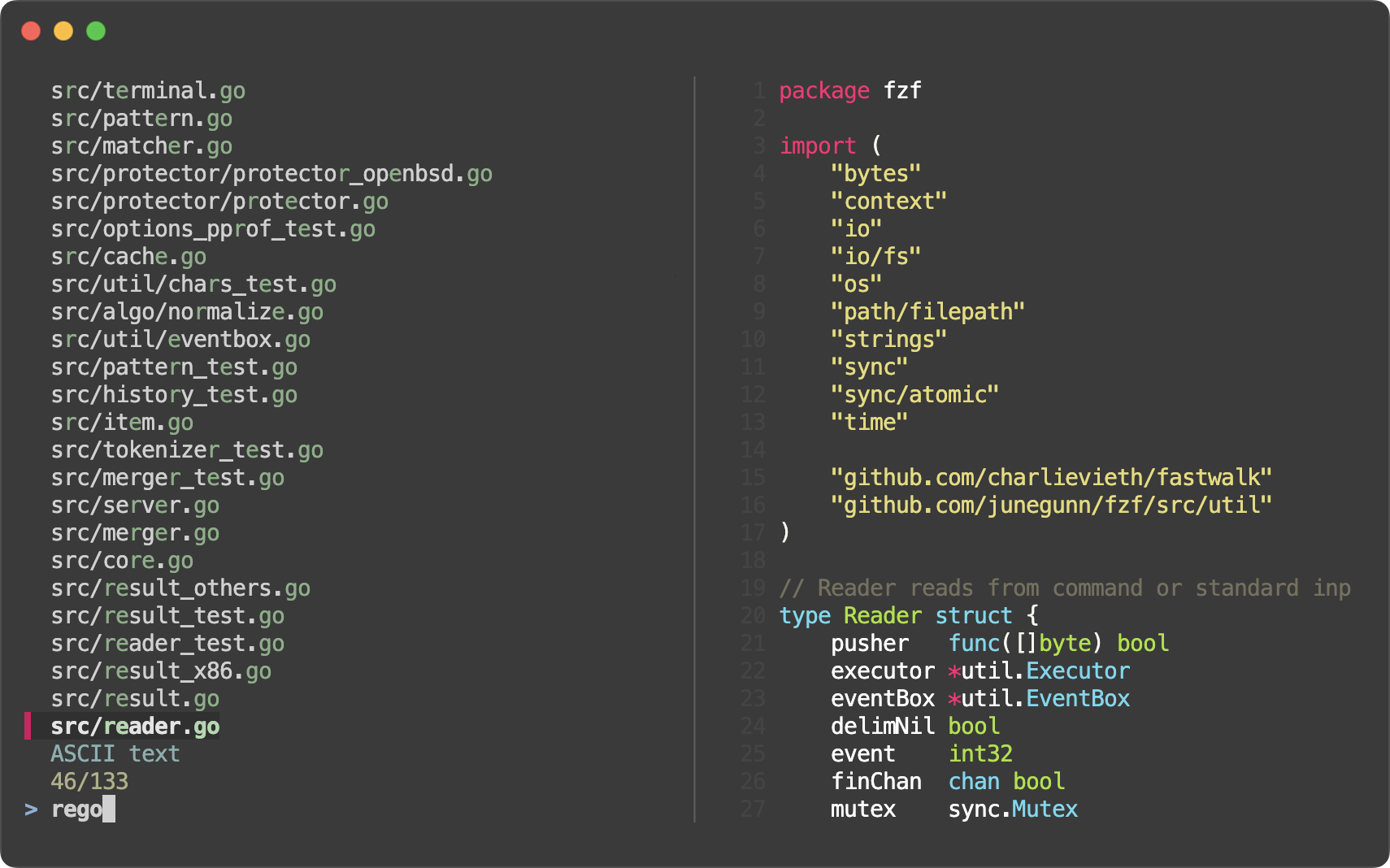 |
|
Here's an example based on the full preset:
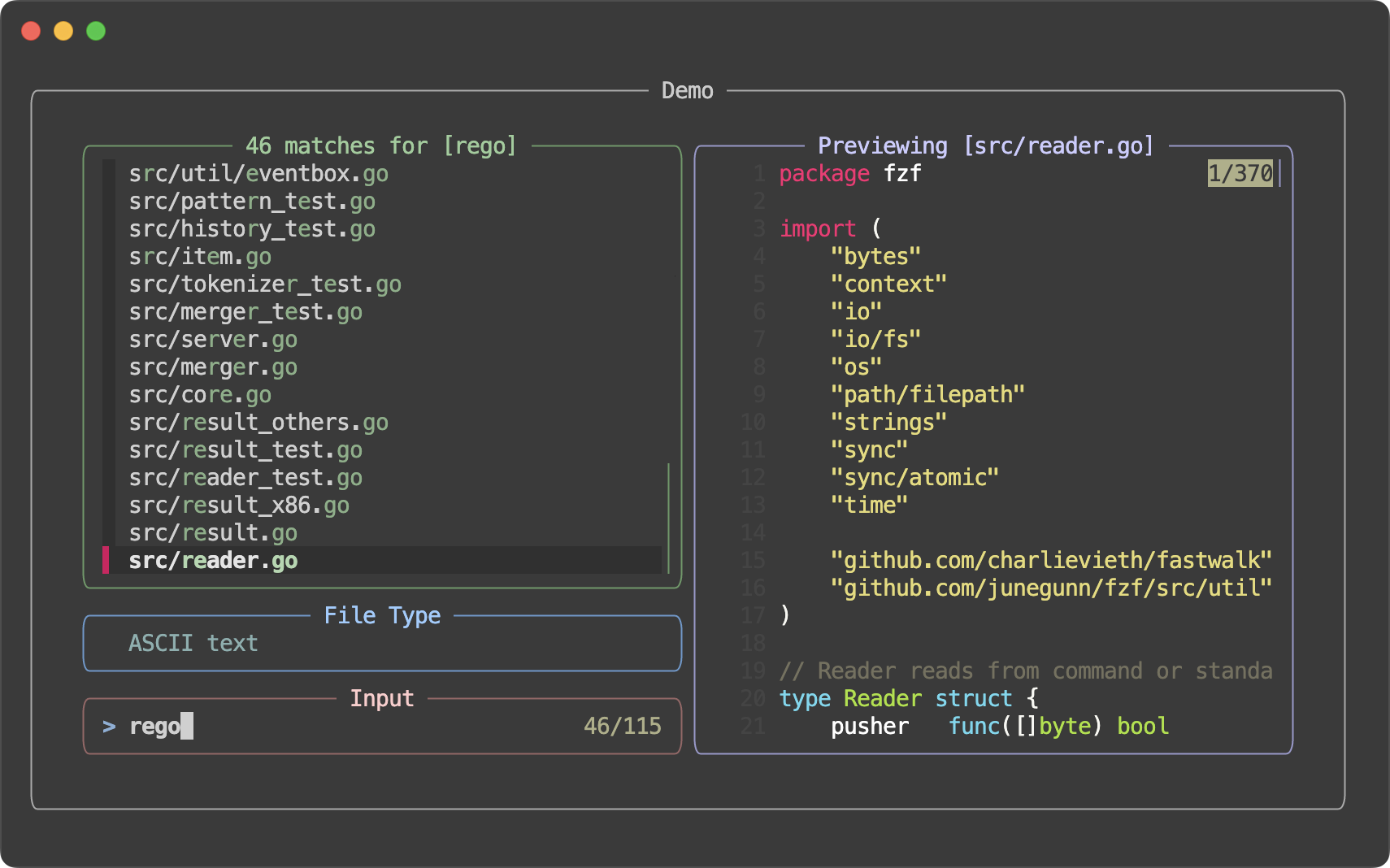
git ls-files | fzf --style full \
    --border --padding 1,2 \
    --border-label ' Demo ' --input-label ' Input ' --header-label ' File Type ' \
    --preview 'fzf-preview.sh {}' \
    --bind 'result:transform-list-label:
        if [[ -z $FZF_QUERY ]]; then
          echo " $FZF_MATCH_COUNT items "
        else
          echo " $FZF_MATCH_COUNT matches for [$FZF_QUERY] "
        fi
        ' \
    --bind 'focus:transform-preview-label:[[ -n {} ]] && printf " Previewing [%s] " {}' \
    --bind 'focus:+transform-header:file --brief {} || echo "No file selected"' \
    --bind 'ctrl-r:change-list-label( Reloading the list )+reload(sleep 2; git ls-files)' \
    --color 'border:#aaaaaa,label:#cccccc' \
    --color 'preview-border:#9999cc,preview-label:#ccccff' \
    --color 'list-border:#669966,list-label:#99cc99' \
    --color 'input-border:#996666,input-label:#ffcccc' \
    --color 'header-border:#6699cc,header-label:#99ccff'
See the man page (fzf --man or man fzf) for the full list of options.
fzf features.
Examples --------
By setting up shell integration, you can use the following key bindings in bash, zsh, fish, and Nushell.
CTRL-T - Paste the selected files and directories onto the command-line--walker file,dir,follow,hidden optionFZF_CTRL_T_COMMAND to a custom command that generates the desired list--walker* options in FZF_CTRL_T_OPTSFZF_CTRL_T_OPTS to pass additional options to fzf # Preview file content using bat (https://github.com/sharkdp/bat)
export FZF_CTRL_T_OPTS="
--walker-skip .git,node_modules,target
--preview 'bat -n --color=always {}'
--bind 'ctrl-/:change-preview-window(down|hidden|)'"
FZF_CTRL_T_COMMAND to an empty string whenCTRL-R - Paste the selected command from history onto the command-line.TAB.CTRL-RALT-R to toggle "raw" mode where you can see the surrounding itemsCTRL-N and CTRL-P to move
between the matching items only.
CTRL-/ or ALT-/ to toggle line wrappingSHIFT-DELETE to delete the selected commands (bash and fish)ALT-ENTER to reformat and insert the selected commandsALT-T to cycle through command prefix (timestamp, date/time, none)FZF_CTRL_R_OPTS to pass additional options to fzf # CTRL-Y to copy the command into clipboard using pbcopy
export FZF_CTRL_R_OPTS="
--bind 'ctrl-y:execute-silent(echo -n {2..} | pbcopy)+abort'
--color header:italic
--header 'Press CTRL-Y to copy command into clipboard'"
      # Fish shell: Set date/time as default prefix
      set -gx FZF_CTRL_R_OPTS "--with-nth 1,3.. --bind 'alt-t:change-with-nth(2..|3..|1,3..)'"
# Or display no prefix by default
      set -gx FZF_CTRL_R_OPTS "--with-nth 3.. --bind 'alt-t:change-with-nth(2..|1,3..|3..)'"
FZF_CTRL_R_COMMAND to an empty string whenFZF_CTRL_R_COMMAND is not yet supported and will emit a warningALT-C - cd into the selected directory--walker dir,follow,hidden optionFZF_ALT_C_COMMAND to override the default command--walker-* options in FZF_ALT_C_OPTSFZF_ALT_C_OPTS to pass additional options to fzf # Print tree structure in the preview window
export FZF_ALT_C_OPTS="
--walker-skip .git,node_modules,target
--preview 'tree -C {}'"
FZF_ALT_C_COMMAND to an empty string whenDisplay modes for these bindings can be separately configured via
FZF_{CTRL_T,CTRL_R,ALT_C}_OPTS or globally via FZF_DEFAULT_OPTS.
(e.g. FZF_CTRL_R_OPTS='--popup bottom,60% --height 60% --border top')
More tips can be found on the wiki page.
Fuzzy completion ----------------
Shell integration also provides fuzzy completion for bash, zsh, fish, and Nushell.
Fuzzy completion for files and directories can be triggered if the word before
the cursor ends with the trigger sequence, which is by default .
COMMAND [DIRECTORY/][FUZZY_PATTERN]# Files under the current directory
- You can select multiple items with TAB key
vim
Files under parent directory
vim ../
Files under parent directory that match fzf
vim ../fzf
Files under your home directory
vim ~/
Directories under current directory (single-selection)
cd
Directories under ~/github that match fzf
cd ~/github/fzf
Fuzzy completion for PIDs is provided for kill command.
```sh
→ →
→ →
→ →
→ →
→ →
→ →
→ →
→