















1
 →
→
Your Personal AI Assistant; easy to install, deploy on your own machine or on the cloud; supports multiple chat apps with easily extensible capabilities.
Your personal AI assistant — deploy locally or in the cloud, extend with Skills & Plugins, connect across every channel.
| | | | --------------------------------------- | ------------------------------------------------------------------------------------------------------------------------------------------------------------------------------------ | | Never forgets | Three-layer memory — live working context, full verbatim history, and a self-evolving personal knowledge base powered by ReMe. Conversations and resources continuously become readable, editable, searchable, and linked Markdown memory. | | Local or cloud, runs free | QwenPaw-Flash models (2B / 4B / 9B) trained for agent tasks. Built-in QwenPaw Local runtime — no API key, no cloud dependency. Also works with Ollama, LM Studio, or 14+ cloud providers. | | Security built in | Kernel-level Sandbox, Tool Guard, File Guard, Skill Scanner, and Access Policy. Dangerous commands are blocked before they run. | | Multi-agent & parallel | Spawn independent agents with their own memory and skills. Sub-agents at runtime. Agent Communication Protocol (ACP) for cross-system orchestration. | | File workspace | Unified file navigation, preview, editing, diffs, upload, and download across project and Agent files. | | Extensible | Skills for scheduling, documents, browser, news, and more. Plugin architecture with a marketplace. MCP integration for external tools. Combine them into purpose-built workflows. | | Reachable anywhere | DingTalk, Lark, WeChat, Discord, Telegram, iMessage, QQ — one instance, all channels. Console, TUI, and desktop app for direct access. | | Yours, not ours | Deploy locally — data stays on your machine. No third-party hosting, no data upload. |
---
Built on Agent OS, we will be launching out-of-box QwenPaw applications — such as QwenPaw Creator and QwenPaw Insight — stay tuned. v2.0.0 Release Notes →
---
If you prefer managing Python yourself (requires Python >= 3.11, < 3.14):
pip install qwenpaw
qwenpaw init --defaults
qwenpaw app
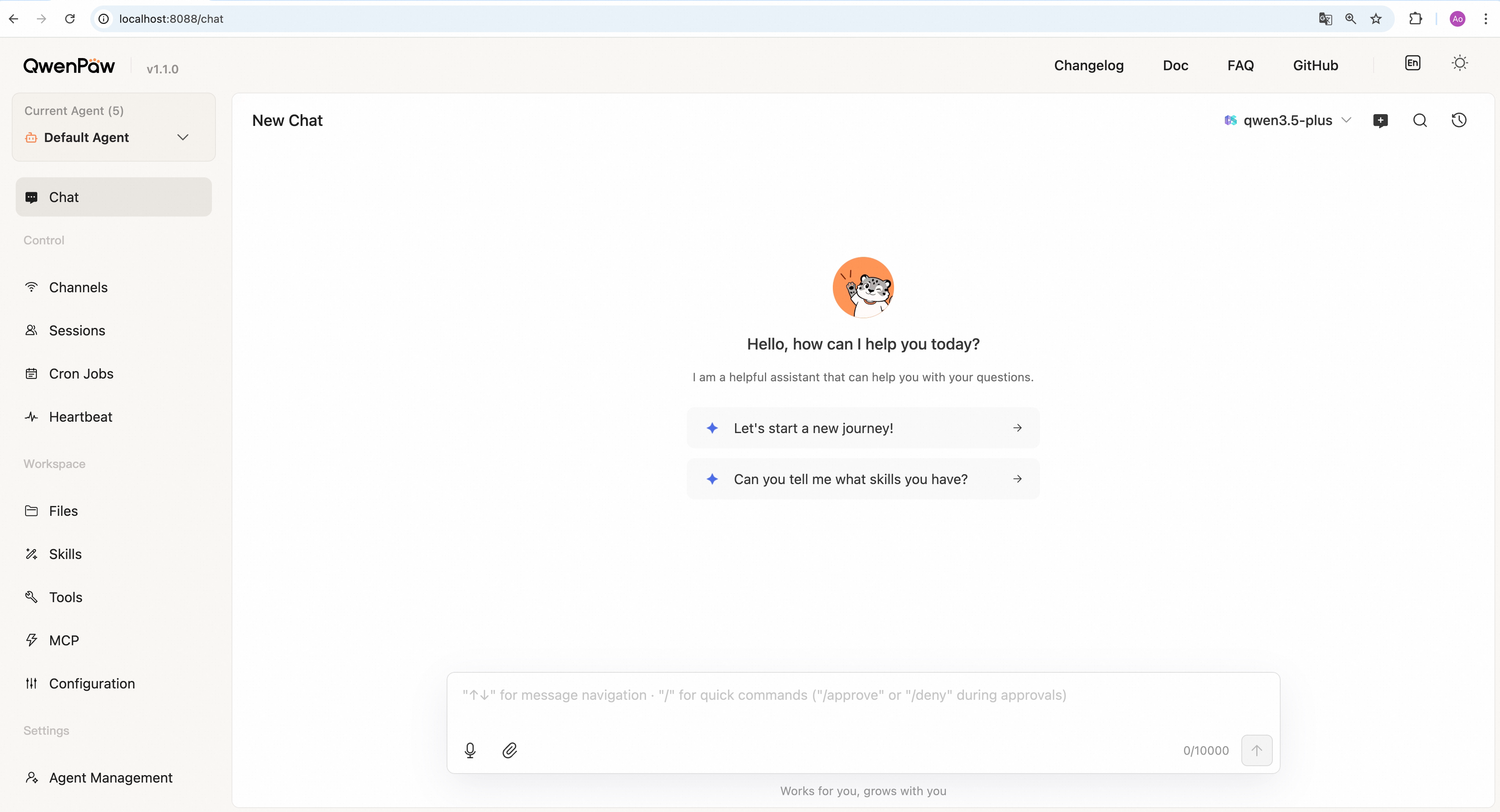
Then open the Console in your browser at http://127.0.0.1:8088/ to configure your model. To chat in DingTalk, Lark, WeChat, etc., see the Channel setup documentation.
---
No Python setup required, one command installs everything. The script will automatically download uv (Python package manager), create a virtual environment, and install QwenPaw with all dependencies (including Node.js and frontend assets). Note: May not work in restricted network environments or corporate firewalls.
macOS / Linux:
curl -fsSL https://qwenpaw.agentscope.io/install.sh | bash
Windows (CMD):
curl -fsSL https://qwenpaw.agentscope.io/install.bat -o install.bat && install.bat
Windows (PowerShell):
irm https://qwenpaw.agentscope.io/install.ps1 | iex
Note: The installer will automatically check the status of uv. If it is not installed, it will attempt to download and configure it automatically. If the automatic installation fails, please follow the on-screen prompts or execute python -m pip install -U uv, then rerun the installer.
⚠️ Special Notice for Windows Enterprise LTSC Users
> If you are using Windows LTSC or an enterprise environment governed by strict security policies, PowerShell may run in Constrained Language Mode, potentially causing the following issue:
1. If using CMD (.bat): Script executes successfully but fails to write to Path
> The script completes file installation. Due to Constrained Language Mode, it cannot automatically update environment variables. Manually configure as follows:
- Locate the installation directory:
- Check ifuvis available: Enteruv --versionin CMD. If a version number appears, only configure the QwenPaw path. If you receive the prompt'uv' is not recognized as an internal or external command, operable program or batch file,configure both paths.
- uv path (choose one based on installation location; use ifuvfails): Typically%USERPROFILE%\.local\bin,%USERPROFILE%\AppData\Local\uv, or theScriptsfolder within your Python installation directory
- QwenPaw path: Typically located at %USERPROFILE%\.qwenpaw\bin.
- Manually add to the system's Path environment variable:
- PressWin + R, typesysdm.cpland press Enter to open System Properties.
- Click “Advanced” -> “Environment Variables”.
- Under “System variables”, locate and select Path, then click “Edit”.
- Click “New”, enter both directory paths sequentially, then click OK to save.
2. If using PowerShell (.ps1): Script execution interrupted
> Due to Constrained Language Mode, the script may fail to automatically download uv.
- Manually install uv: Refer to the GitHub Release to downloaduv.exeand place it in%USERPROFILE%\.local\binor%USERPROFILE%\AppData\Local\uv; or ensure Python is installed and runpython -m pip install -U uv.
- Configureuvenvironment variables: Add theuvdirectory and%USERPROFILE%\.qwenpaw\binto your system'sPathvariable.
- Re-run the installation: Open a new terminal and execute the installation script again to complete the QwenPaw installation.
- Configure theQwenPawenvironment variable: Add%USERPROFILE%\.qwenpaw\binto your system'sPathvariable.
Once installed, open a new terminal and run:
qwenpaw init --defaults   # or: qwenpaw init (interactive)
qwenpaw app
macOS / Linux:
# Install a specific version
curl -fsSL ... | bash -s -- --version 1.1.0
Install from source (dev/testing)
curl -fsSL ... | bash -s -- --from-source
Upgrade — just re-run the installer
curl -fsSL ... | bash
Uninstall
qwenpaw uninstall          # keeps config and data
qwenpaw uninstall --purge  # removes everything
Windows (PowerShell):
# Install a specific version
irm ... | iex; .\install.ps1 -Version 1.1.12
Install from source (dev/testing)
.\install.ps1 -FromSource
Upgrade — just re-run the installer
irm ... | iex
Uninstall
qwenpaw uninstall          # keeps config and data
qwenpaw uninstall --purge  # removes everything
---
Images are on Docker Hub (agentscope/qwenpaw). Image tags: latest (stable); pre (PyPI pre-release).
docker pull agentscope/qwenpaw:latest
docker run -p 127.0.0.1:8088:8088 \
  -v qwenpaw-data:/app/working \
  -v qwenpaw-secrets:/app/working.secret \
  -v qwenpaw-backups:/app/working.backups \
  agentscope/qwenpaw:latest
Also available on Alibaba Cloud Container Registry (ACR) for users in China: agentscope-registry.ap-southeast-1.cr.aliyuncs.com/agentscope/qwenpaw (same tags).
Then open http://127.0.0.1:8088/ for the Console. Config, memory, and skills are stored in the qwenpaw-data volume; model provider settings and API keys are in the qwenpaw-secrets volume; backup archives are stored in the qwenpaw-backups volume. To pass API keys (e.g. DASHSCOPE_API_KEY), add -e VAR=value or --env-file .env to docker run.
Connecting to Ollama or other services on the host machine
> Inside a Docker container, localhost refers to the container itself, not your host machine. If you run Ollama (or other model services) on the host and want QwenPaw in Docker to reach them, use one of these approaches:
> Option A — Explicit host binding (all platforms):
> docker run -p 127.0.0.1:8088:8088 \
--add-host=host.docker.internal:host-gateway \
-v qwenpaw-data:/app/working \
-v qwenpaw-secrets:/app/working.secret \
-v qwenpaw-backups:/app/working.backups \
agentscope/qwenpaw:latest
Then in QwenPaw Settings → Models, change the Base URL tohttp://host.docker.internal:— for example,http://host.docker.internal:11434for Ollama, orhttp://host.docker.internal:1234/v1for LM Studio.
> Option B — Host networking (Linux only):
> docker run --network=host \
-v qwenpaw-data:/app/working \
-v qwenpaw-secrets:/app/working.secret \
-v qwenpaw-backups:/app/working.backups \
agentscope/qwenpaw:latest
No port mapping (-p) is needed; the container shares the host network directly. Note that all container ports are exposed on the host, which may cause conflicts if the port is already in use.
>
The image is built from scratch. To build the image yourself, please refer to the Build Docker image section in scripts/README.md, and then push to your registry.
---
To run QwenPaw on Alibaba Cloud (ECS), use the one-click deployment: open the QwenPaw on Alibaba Cloud (ECS) deployment link and follow the prompts. For step-by-step instructions, see Alibaba Cloud Developer: Deploy your AI assistant in 3 minutes.
---
AgentScope Platform provides one-click cloud QwenPaw deployment, plugin sharing, and a Skill marketplace. Free, 7/24 online.
---
ModelScope Studio also supports cloud QwenPaw deployment. Note: set your Studio to non-public so others cannot control your QwenPaw.
---
Beta Notice: The desktop application is currently in Beta testing phase with the following known limitations:
- Incomplete compatibility testing: Not fully tested across all system versions and hardware configurations
- Potential performance issues: Startup time, memory usage, and other performance aspects may need further optimization
- Features under development: Some features may be unstable or missing
If you're not comfortable with command-line tools, you can download and use QwenPaw's desktop application without manually configuring Python environments or running commands.
Download the desktop app (Tauri build) from the official download page:
QwenPaw-Tauri--Windows-setup.exeQwenPaw-Tauri--macOS.zip (Apple Silicon recommended)Important: The first launch may take 10-60 seconds (depending on your system configuration). The application needs to initialize the Python environment and load dependencies. Please wait patiently for the window to open automatically.
When you download the QwenPaw macOS app from Releases, macOS may show: "Apple cannot verify that 'QwenPaw' contains no malicious software". This happens because the app is not notarized. You can still open it as follows:
xattr -cr "/Applications/QwenPaw Desktop.app"
(or use the path to the .app after unzipping). This clears the "downloaded from the internet" quarantine flag so the warning usually does not appear, but is less safe and controllable than using Right-click → Open.
For detailed usage instructions, troubleshooting, and common issues, see the Desktop Application Guide.
---
After installation, configure your model in Console → Settings → Models, then explore:
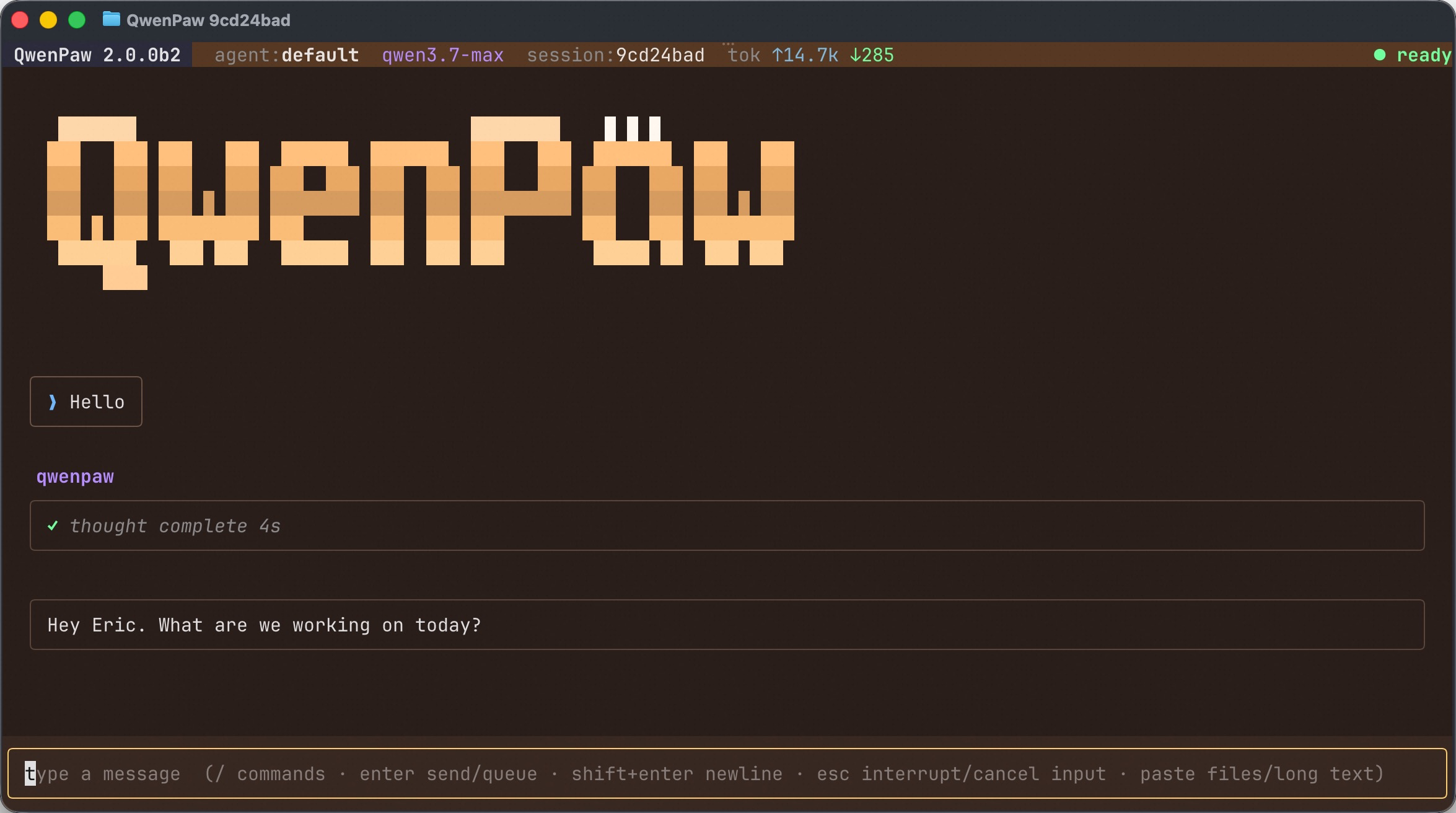
Prefer to stay in the terminal? Run qwenpaw to open a full-screen chat TUI that drives the _same_ agent as the Console and the IM Channels — same memory, skills, MCP tools, and sessions — without leaving your keyboard.
qwenpaw                     # open a chat with the active agent
qwenpaw tui --resume    # resume a previous session
qwenpaw .                   # start in the current repo (Coding Mode)
It supports streaming replies, slash commands (/help, /resume, /theme, plus the agent's own /model, /clear, …), pasting files/long text as attachments, and inline tool-permission prompts. See the Terminal UI guide for details.
---
If you use a cloud LLM API (e.g., DashScope / Qwen, OpenAI, Anthropic, Google Gemini, DeepSeek, Kimi, OpenRouter, and more), you must configure an API key before chatting. QwenPaw will not work until a valid key is set. See the official docs for details.
How to configure:
1. Console (recommended) — After running qwenpaw app, open http://127.0.0.1:8088/ → Settings → Models. Choose a provider, enter the API Key, and enable that provider and model.
2. qwenpaw init — When you run qwenpaw init, it will guide you through configuring the LLM provider and API key. Follow the prompts to choose a provider and enter your key.
3. Environment variable — For DashScope you can set DASHSCOPE_API_KEY in your shell or in a .env file in the working directory.
Tools that need extra keys (e.g. TAVILY_API_KEY for web search) can be set in Console Settings → Environment variables, see Config for details.
Using local models only? If you use Local Models (QwenPaw Local / Ollama / LM Studio), you do not need any API key.
QwenPaw can run LLMs entirely on your machine — no API keys or cloud services required. See the official docs for details.
QwenPaw also provides the QwenPaw-Flash series — purpose-trained 2B / 4B / 9B models for agent scenarios, with Q4 and Q8 quantizations. Available on ModelScope and Hugging Face.
| Backend | Best for | Install | | --------------
→ →
→ →
→ →
→ →
→ →
→