1
 →
→
A High-performance cross-platform Video Processing Python framework powerpacked with unique trailblazing features 🔥


Getting Started | [Gears][gears] | [Documentation][docs] | [Installation][installation] | License
[![Build Status][github-cli]][github-flow] [![Codecov branch][codecov]][code] [![Azure DevOps builds (branch)][azure-badge]][azure-pipeline]
[![Glitter chat][gitter-badge]][gitter] [![Build Status][appveyor]][app] [![PyPi version][pypi-badge]][pypi]
|
 |
| _If you’re looking for a meeting recording API,consider checking out Recall.ai, an API that records Zoom,Google Meet, Microsoft Teams, in-person meetings, and more._ |
|
| _If you’re looking for a meeting recording API,consider checking out Recall.ai, an API that records Zoom,Google Meet, Microsoft Teams, in-person meetings, and more._ |
_🙏 We are incredibly thankful to all our sponsors for supporting the development of VidGear. If you'd like to support VidGear, please check out our GitHub Sponsors page ➶_
VidGear provides an easy-to-use, highly extensible, thoroughly optimised Multi-Threaded + Asyncio API Framework on top of many state-of-the-art specialized libraries like _[OpenCV][opencv], [FFmpeg][ffmpeg], [ZeroMQ][zmq], [picamera2][picamera2], [starlette][starlette], [yt_dlp][yt_dlp], [pyscreenshot][pyscreenshot], [dxcam][dxcam], [aiortc][aiortc] and [python-mss][mss]_ serving at its backend, and enable us to flexibly exploit their internal parameters and methods, while silently delivering robust error-handling and real-time performance 🔥.
_If you're new to VidGear, head straight to the Getting Started ➶ section to install VidGear._
The following functional block diagram clearly depicts the generalized functioning of VidGear APIs:
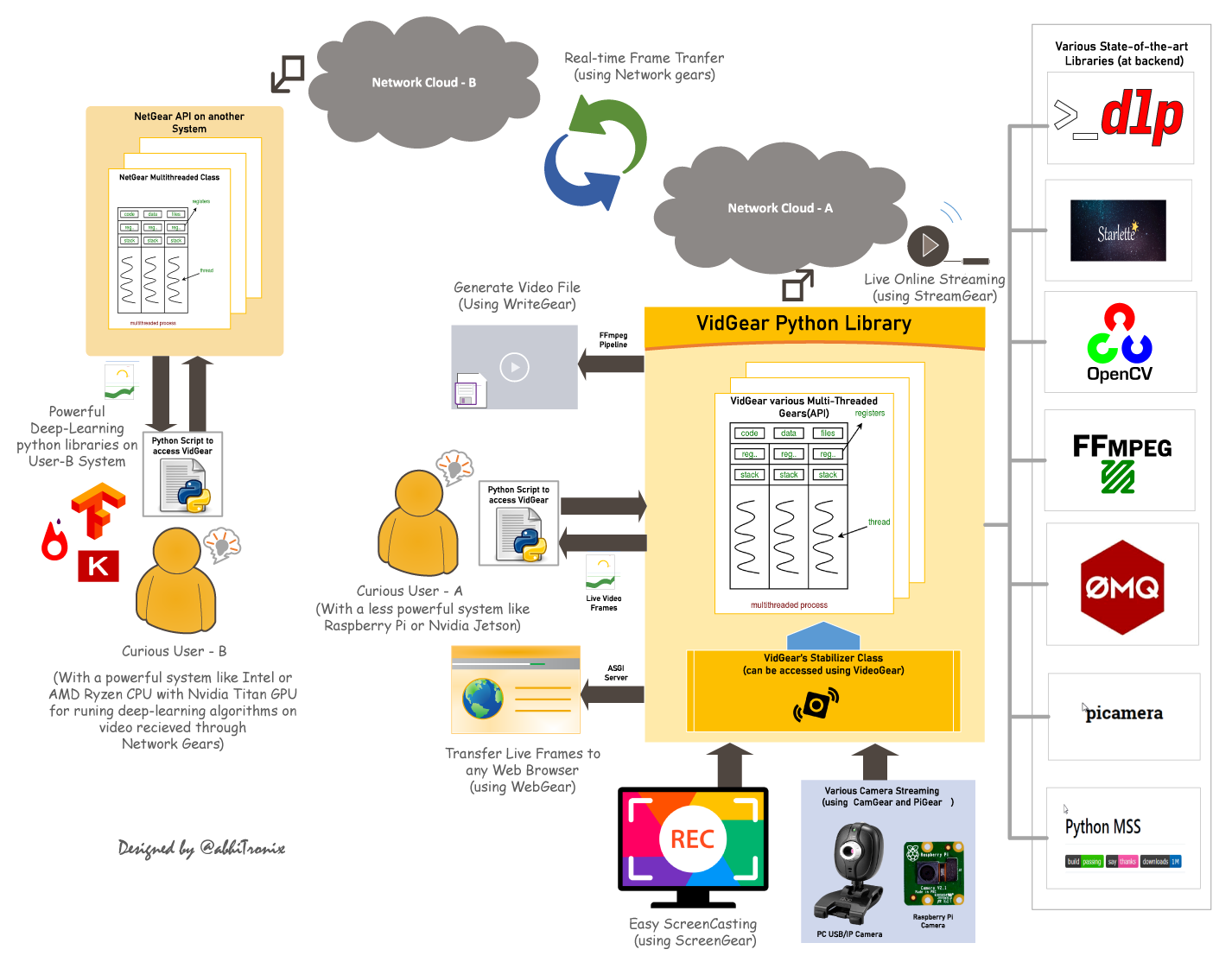
_"VidGear is a cross-platform High-Performance Framework that provides an one-stop Video-Processing solution for building complex real-time media applications in python."_
_"VidGear can read, write, process, send & receive video files/frames/streams from/to various devices in real-time, and [faster][tqm-doc] than underline libraries."_
_"Write Less and Accomplish More"_ — VidGear's Motto
_"Built with simplicity in mind, VidGear lets programmers and software developers to easily integrate and perform Complex Video-Processing Tasks in their existing or newer applications without going through hefty documentation and in just a [few lines of code][switch_from_cv]. Beneficial for both, if you're new to programming with Python language or already a pro at it."_
If this is your first time using VidGear, head straight to the [Installation ➶][installation] to install VidGear.
Once you have VidGear installed, Checkout its Well-Documented [Function-Specific Gears ➶][gears]
Also, if you're already familiar with [OpenCV][opencv] library, then see [Switching from OpenCV Library ➶][switch_from_cv]
Or, if you're just getting started with OpenCV-Python programming, then refer this FAQ ➶
Finally, if looking for containerizing VidGear with Docker, then refer this guide ➶
VidGear is built with multiple APIs a.k.a [Gears][gears], each with some unique functionality.
Each API is designed exclusively to handle/control/process different data-specific & device-specific video streams, network streams, and media encoders/decoders. These APIs provides the user an easy-to-use, dynamic, extensible, and exposed Multi-Threaded + Asyncio optimized internal layer above state-of-the-art libraries to work with, while silently delivering robust error-handling.
These Gears can be classified as follows:
A. Video-Capture Gears:
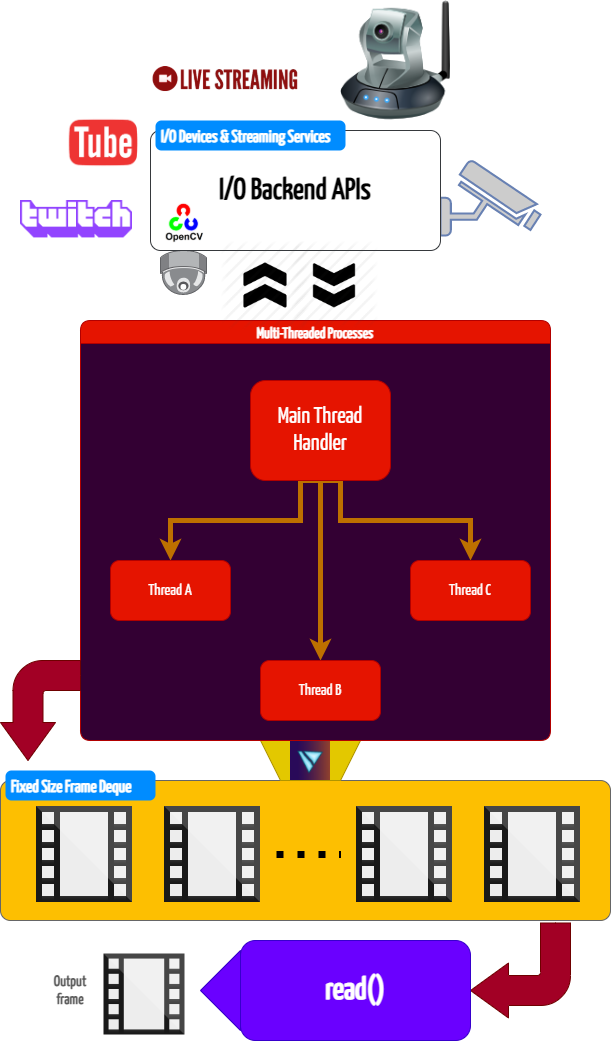
_CamGear can grab ultra-fast frames from a diverse range of file-formats/devices/streams, which includes almost any IP-USB Cameras, multimedia video file-formats, various network stream protocols such as http(s), rtp, rtsp, rtmp, mms, etc., and GStreamer's pipelines, plus direct support for live video streaming sites like YouTube, Twitch, LiveStream, Dailymotion etc._
CamGear provides a flexible, high-level, multi-threaded framework around OpenCV's [VideoCapture class][opencv-vc] with access almost all of its available parameters. CamGear internally implements [yt_dlp][yt_dlp] backend class for seamlessly pipelining live video-frames and metadata from various streaming services like [YouTube][youtube-doc], [Twitch][piping-live-videos], and many more ➶. Furthermore, its framework relies exclusively on [Threaded Queue mode][tqm-doc] for ultra-fast, error-free, and synchronized video-frame handling.
[>>> Usage Guide][camgear-doc]
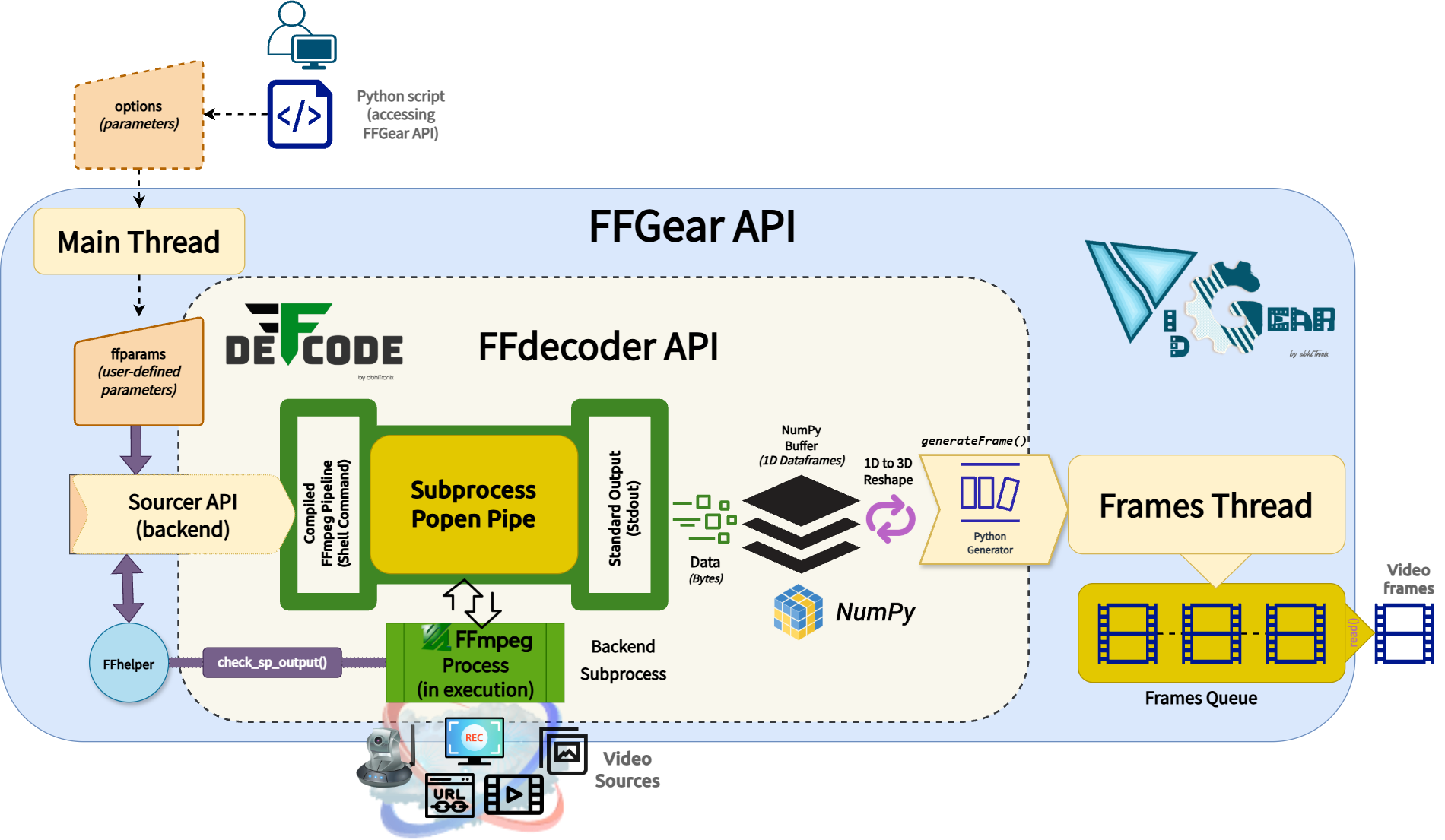
_FFGear is a multi-threaded, high-performance wrapper around [DeFFcode's FFdecoder API][deffcode-doc] that compiles and executes an FFmpeg pipeline inside a subprocess pipe for generating real-time, low-overhead, lightning-fast decoded video frames in Python._
FFGear API provides direct, transparent access to the full FFdecoder feature set, including:
bgr24, yuv420p, gray) with optional OpenCV compatibility patches for YUV/NV layouts.showinfo filter.yt_dlp backend for seamlessly [pipelining live video frames from streaming services][streaming-services-ff] like YouTube, Twitch, and many more ➶
**Below is a snapshot of FFGear optimizing Real-time YOLOv10-Nano model inference by processing only Keyframes (I-frames) while skipping all non-keyframes (P/B-frames), reducing unnecessary decoding and inference workloads by up to 98%.
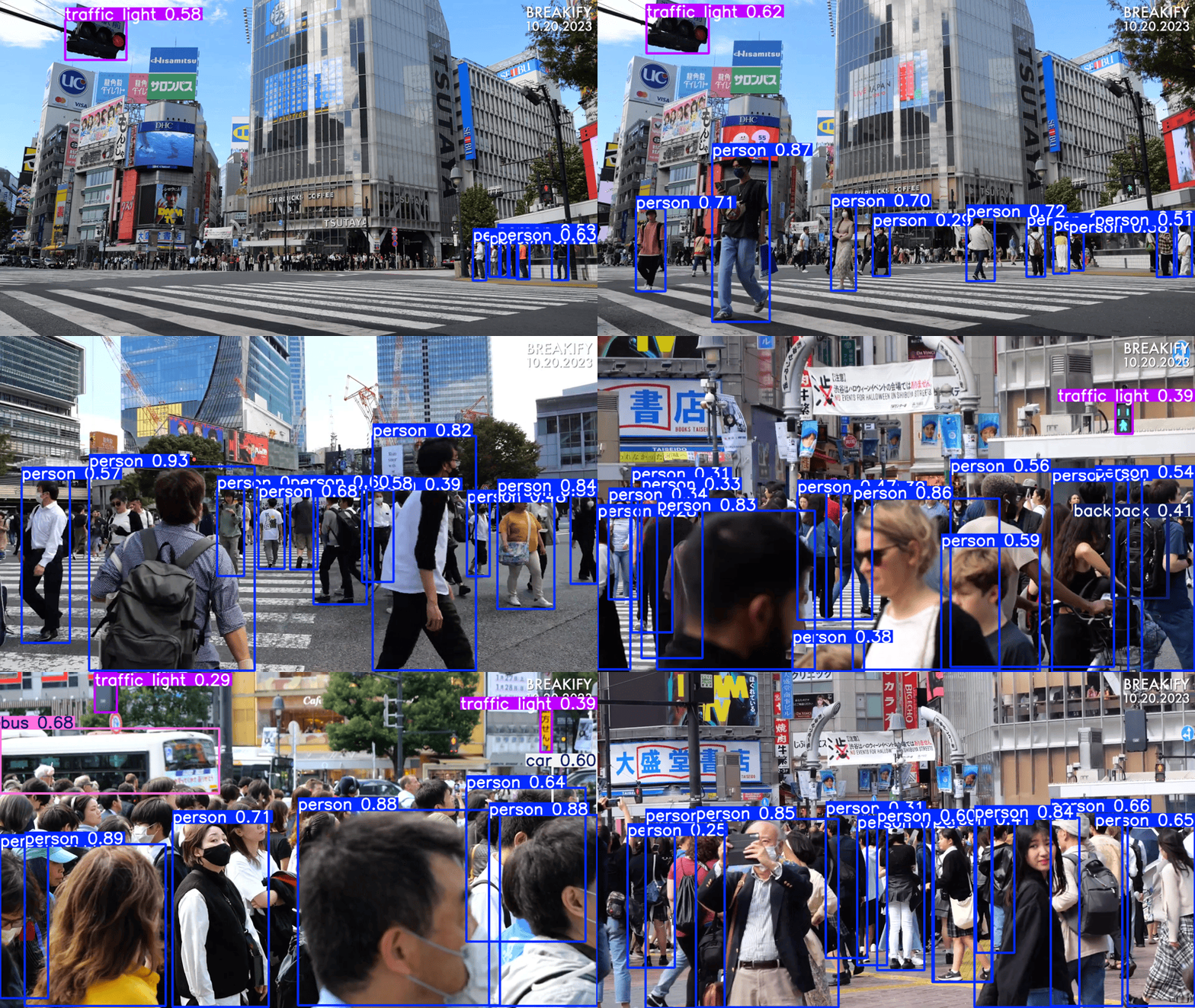
FFGear Keyframes (I-frames) optimization in action!
Code to generate above result:
# import required libraries
from vidgear.gears import FFGear
from ultralytics import YOLO
Initialize YOLOv10-Nano model
model = YOLO("yolov10n.pt")
Configure FFGear with per-frame metadata extraction enable
options = {"-extract_metadata": True}
stream = FFGear(
    source="test.mp4", frame_format="bgr24", logging=True, options
).start()
loop over
while True:
# read data from stream
    output = stream.read()
# check if end of stream
    if output is None:
        break
# Unpack the frame and its associated metadata
    frame, meta = output
# --- OPTIMIZATION STEP ---
    # We skip all non-keyframes to save processing power.
    # This ensures the model only runs on the most information-dense frames.
    if not meta.get("is_keyframe"):
        continue  # <-- Skips Non-key frames (P, B-frames)
# Log keyframe details
    print(f"Keyframe #{meta['frame_num']} at {meta['pts_time']:.3f}s")
# Perform AI Inference on keyframes (I-frames) only
    # Because we skip non-keyframes, this heavy task runs significantly less often.
    results = model(frame)
# Annotate the frame with detection boxes and labels
    annotated_frame = results[0].plot()
# {Insert your custom logic here, e.g., displaying/saving frames or triggering an alert}
safely close video stream
stream.stop()
[>>> Usage Guide][ffgear-doc]
VideoGear API provides a special internal wrapper around VidGear's exclusive [Video Stabilizer][stabilizer-doc] class.
VideoGear also serves as a unified video-capture API, offering seamless access to CamGear, PiGear, and FFGear along with their respective parameters. You can switch between these backends using the api parameter (defaults to Backend.CAMGEAR).
It is especially useful when you want to toggle between different video-capture backends without significant code changes. Additionally, it simplifies video stabilization for both real-time and non-real-time streams, requiring minimal effort and fewer lines of code.
Below is a snapshot of a VideoGear Stabilizer in action (_See its detailed usage [here][stabilizer-doc-ex]_):
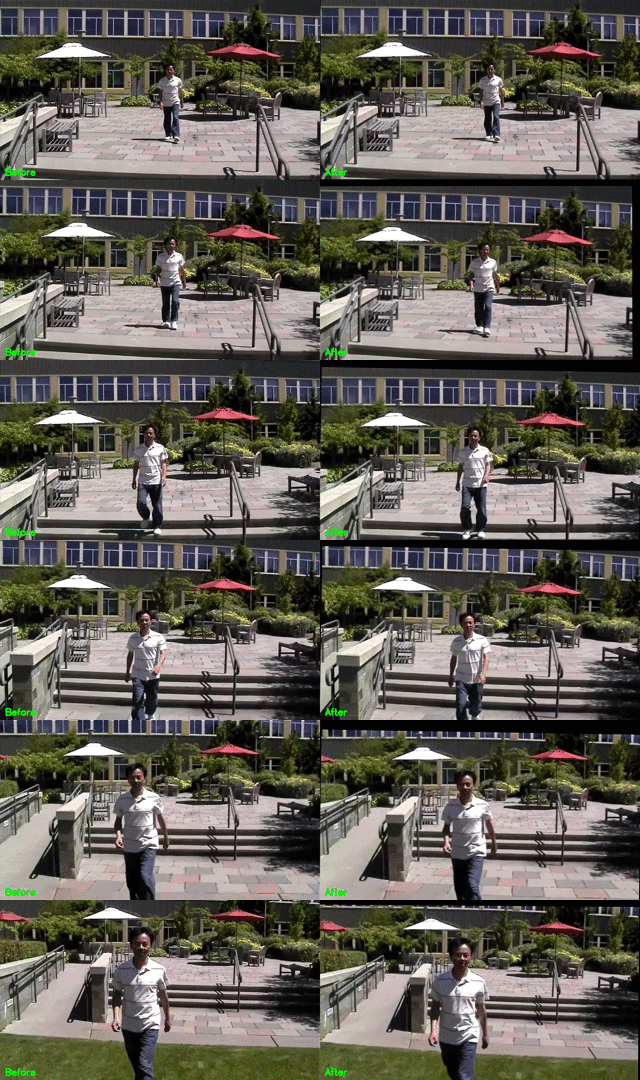
Original Video Courtesy @SIGGRAPH2013
Code to generate above result:
# import required libraries
from vidgear.gears import VideoGear
import numpy as np
import cv2
open any valid video stream with stabilization enabled(stabilize = True)
stream_stab = VideoGear(source="test.mp4", stabilize=True).start()
open same stream without stabilization for comparison
stream_org = VideoGear(source="test.mp4").start()
loop over
while True:
# read stabilized frames
    frame_stab = stream_stab.read()
# check for stabilized frame if Nonetype
    if frame_stab is None:
        break
# read un-stabilized frame
    frame_org = stream_org.read()
# concatenate both frames
    output_frame = np.concatenate((frame_org, frame_stab), axis=1)
# put text over concatenated frame
    cv2.putText(
        output_frame,
        "Before",
        (10, output_frame.shape[0] - 10),
        cv2.FONT_HERSHEY_SIMPLEX,
        0.6,
        (0, 255, 0),
        2,
    )
    cv2.putText(
        output_frame,
        "After",
        (output_frame.shape[1] // 2 + 10, output_frame.shape[0] - 10),
        cv2.FONT_HERSHEY_SIMPLEX,
        0.6,
        (0, 255, 0),
        2,
    )
# Show output window
    cv2.imshow("Stabilized Frame", output_frame)
# check for 'q' key if pressed
    key = cv2.waitKey(1) & 0xFF
    if key == ord("q"):
        break
close output window
cv2.destroyAllWindows()
safely close both video streams
stream_org.stop()
stream_stab.stop()
[>>> Usage Guide][videogear-doc]
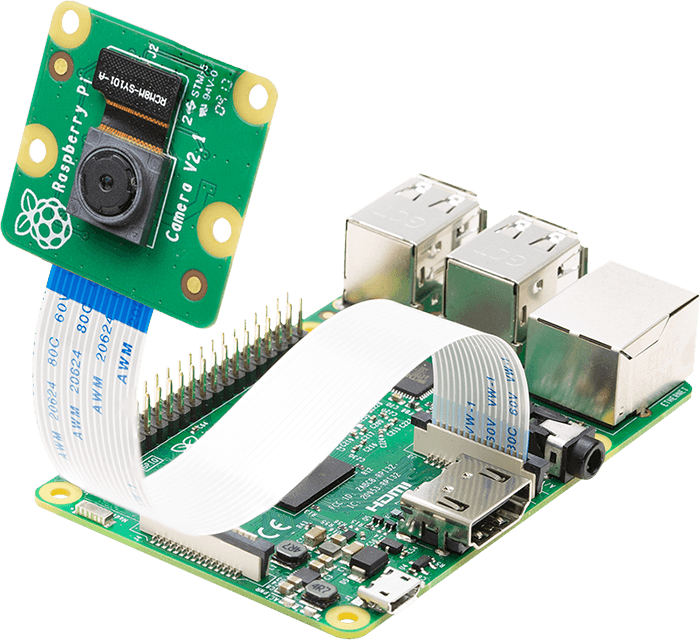
_PiGear is a specialized API similar to the CamGear API but optimized for Raspberry Pi :grapes: Boards, offering comprehensive support for camera modules _(e.g., [OmniVision OV5647 Camera Module][ov5647-picam], [Sony IMX219 Camera Module][imx219-picam])_, along with limited compatibility for USB cameras._
PiGear implements a seamless and robust wrapper around the [picamera2][picamera2] python library, simplifying integration with minimal code changes and ensuring a smooth transition for developers already familiar with the Picamera2 API. PiGear leverages the libcamera API under the hood with multi-threading, providing high-performance :fire:, enhanced control and functionality for Raspberry Pi camera modules.
PiGear handles common configuration parameters and non-standard settings for various camera types, simplifying the integration process. PiGear currently supports PiCamera2 API parameters such as sensor, controls, transform, and format etc., with internal type and sanity checks for robust performance.
While primarily focused on Raspberry Pi camera modules, PiGear also provides basic functionality for USB webcams only with Picamera2 API, along with the ability to accurately differentiate between USB and Raspberry Pi cameras using metadata.
PiGear seamlessly switches to the legacy [picamera][picamera] library if the picamera2 library is unavailable, ensuring seamless backward compatibility. For this, PiGear also provides a flexible multi-threaded framework around complete picamera API, allowing developers to effortlessly exploit a wide range of parameters, such as brightness, saturation, sensor_mode, iso, exposure, and more.
Furthermore, PiGear supports the use of multiple camera modules, including those found on Raspberry Pi Compute Module IO boards and USB cameras _(only with Picamera2 API)_.
Best of all, PiGear contains Threaded Internal Timer - that silently keeps active track of any frozen-threads/hardware-failures and exit safely, if any does occur. That means that if you're running PiGear API in your script and someone accidentally pulls the Camera-Module cable out, instead of going into possible kernel panic, API will exit safely to save resources.
Code to open picamera2 stream with variable parameters in PiGear API:
# import required libraries
from vidgear.gears import PiGear
from libcamera import Transform
import cv2
formulate various Picamera2 API
configurational parameters
options = {
    "controls": {"Brightness": 0.5, "ExposureValue": 2.0},
    "transform": Transform(hflip=1),
    "sensor": {"output_size": (480, 320)},  # will override resolution
    "format": "RGB888", # 8-bit BGR
}
open pi video stream with defined parameters
stream = PiGear(resolution=(640, 480), framerate=60, logging=True, options).start()
loop over
while True:
# read frames from stream
    frame = stream.read()
# check for frame if Nonetype
    if frame is None:
        break
# {do something with the frame here}
# Show output window
    cv2.imshow("Output Frame", frame)
# check for 'q' key if pressed
    key = cv2.waitKey(1) & 0xFF
    if key == ord("q"):
        break
close output window
cv2.destroyAllWindows()
safely close video stream
stream.stop()
[>>> Usage Guide][pigear-doc]
_ScreenGear is designed exclusively for targeting rapid Screencasting Capabilities, which means it can grab frames from your monitor in real-time, either by defining an area on the computer screen or full-screen, at the expense of inconsiderable latency. ScreenGear also seamlessly support frame capturing from multiple monitors as well as supports multiple backends._
ScreenGear implements a Lightning-Fast API wrapper around [dxcam][dxcam], [pyscreenshot][pyscreenshot] & [python-mss][mss] python libraries and also supports an easy and flexible direct internal parameters manipulation.
Below is a snapshot of a ScreenGear API in action:
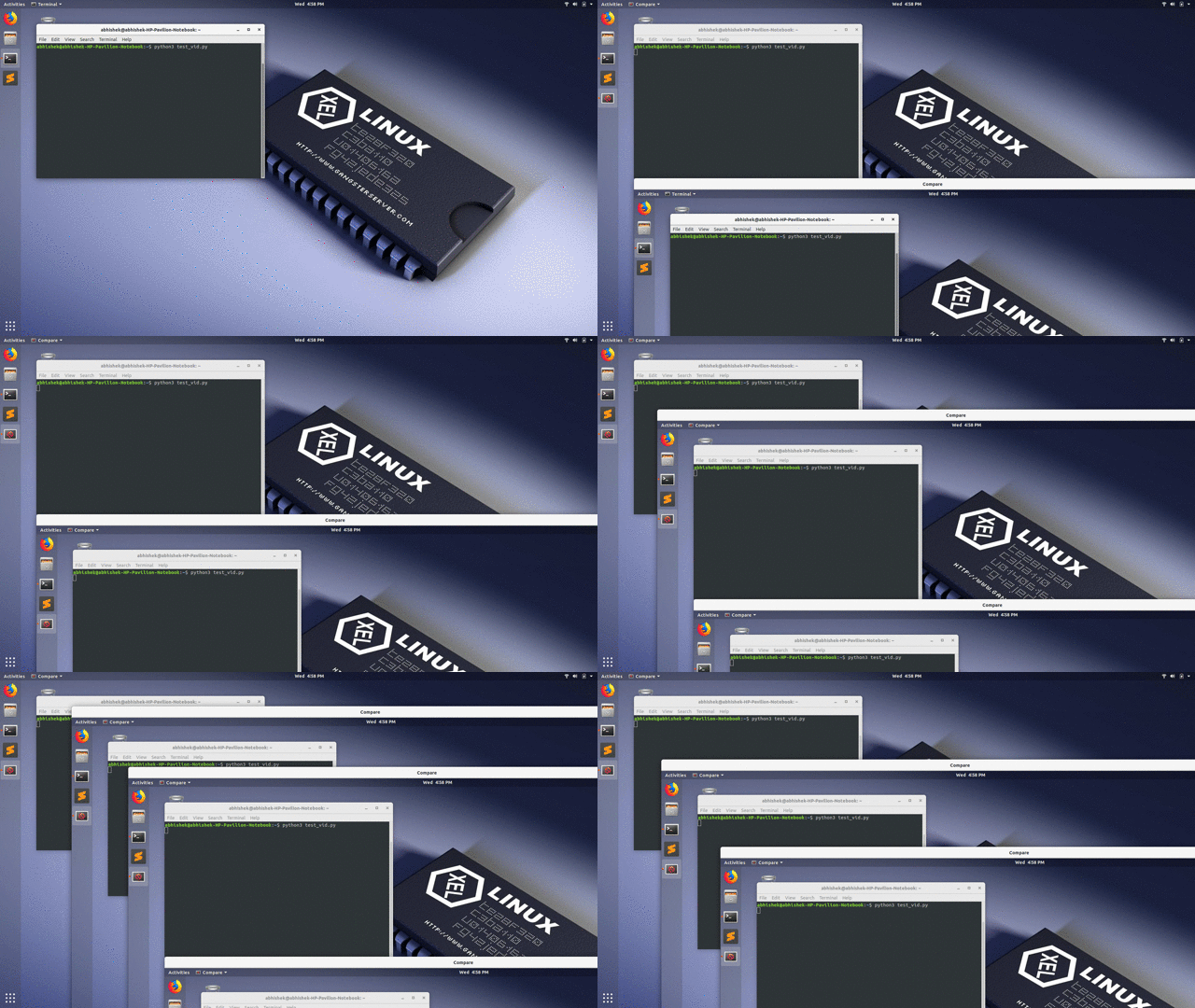
Code to generate the above results:
# import required libraries
from vidgear.gears import ScreenGear
import cv2
open video stream with default parameters
stream = ScreenGear().start()
loop over
while True:
# read frames from stream
    frame = stream.read()
# check for frame if Nonetype
    if frame is None:
        break
# {do something with the frame here}
# Show output window
    cv2.imshow("Output Frame", frame)
# check for 'q' key if pressed
    key = cv2.waitKey(1) & 0xFF
    if key == ord("q"):
        break
close output window
cv2.destroyAllWindows()
safely close video stream
stream.stop()
[>>> Usage Guide][screengear-doc]
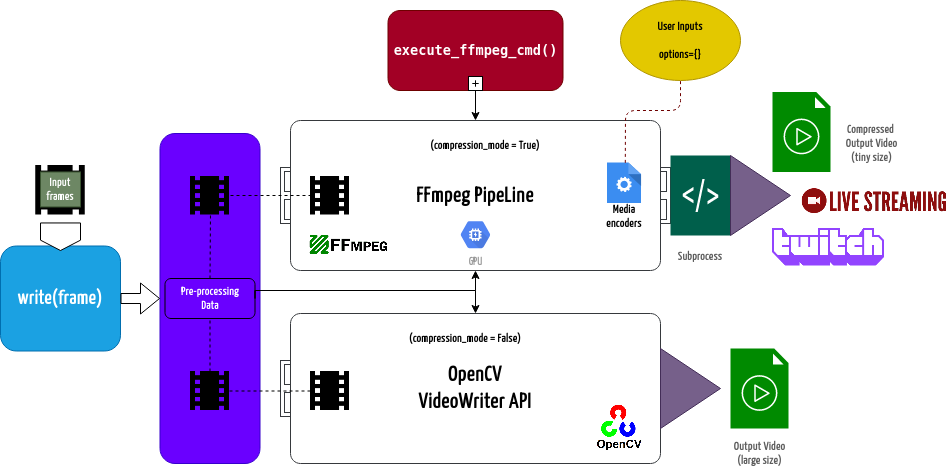
_WriteGear handles various powerful Video-Writer Tools that provide us the freedom to do almost anything imaginable with multimedia data._
WriteGear API provides a complete, flexible, and robust wrapper around [FFmpeg][ffmpeg], a leading multimedia framework. WriteGear can process real-time frames into a lossless compressed video-file with any suitable specifications _(such asbitrate, codec, framerate, resolution, subtitles, etc.)_.
WriteGear also supports streaming with traditional protocols such as [RTSP/RTP][rtsp-ex], RTMP. It is powerful enough to perform complex tasks such as [Live-Streaming][live-stream] _(such as for Twitch, YouTube etc.)_ and [Multiplexing Video-Audio][live-audio-doc] with real-time frames in just few lines of code.
Best of all, WriteGear grants users the complete freedom to play with any FFmpeg parameter with its exclusive Custom Commands function _(see this [doc][custom-command-doc])_ without relying on any third-party API.
In addition to this, WriteGear also provides flexible access to [OpenCV's VideoWriter API][opencv-writer] tools for video-frames encoding without compression.
WriteGear primarily operates in the following two modes:
Compression Mode: In this mode, WriteGear utilizes powerful [FFmpeg][ffmpeg] inbuilt encoders to encode lossless multimedia files. This mode provides us the ability to exploit almost any parameter available within FFmpeg, effortlessly and flexibly, and while doing that it robustly handles all errors/warnings quietly. You can find more about this mode [here ➶][cm-writegear-doc]
Non-Compression Mode: In this mode, WriteGear utilizes basic [OpenCV's inbuilt VideoWriter API][opencv-vw] tools. This mode also supports all parameter transformations available within OpenCV's VideoWriter API, but it lacks the ability to manipulate encoding parameters and other important features like video compression, audio encoding, etc. You can learn about this mode [here ➶][ncm-writegear-doc]
WriteGear API Guide:
[>>> Usage Guide**][writegear-doc]
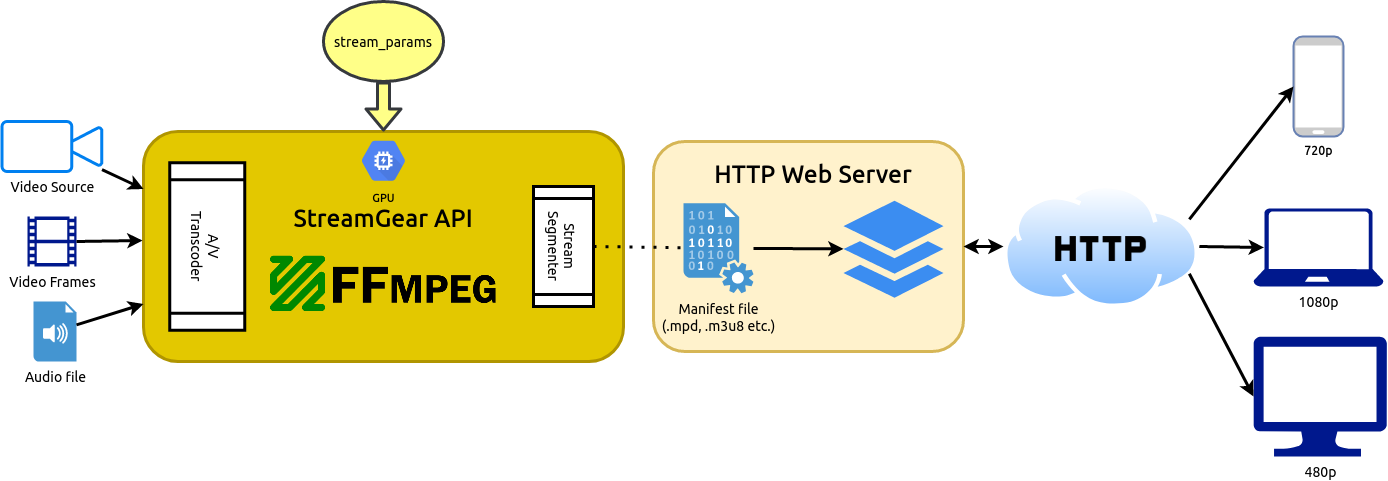
_StreamGear streamlines and simplifies the transcoding workflow to generate Ultra-Low Latency, High-Quality, Dynamic & Adaptive Streaming Formats like MPEG-DASH and Apple HLS with just a few lines of Python code, allowing developers to focus on their application logic rather than dealing with the complexities of transcoding and chunking media files._
StreamG
→ →
→ →
→ →
→ →
→ →
→